PageCat User Guide
Welcome to PageCat, your all-in-one web page catcher. PageCat helps you catch and save web pages on your computer with just a few clicks. Whether you want to save a single article, capture an entire webpage, archive research materials, or build an offline library, PageCat provides a simple and efficient workflow with powerful page capture and management tools.
This guide will walk you through everything you need to know to get started with PageCat.
1. Download and Install PageCat
1.1 Download PageCat
Choose your operating system and download the latest version of PageCat.
1.2 Install PageCat on Windows
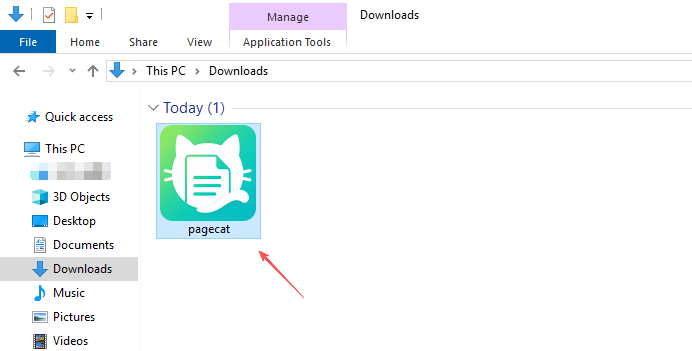
Double-click the downloaded pagecat.exe file.
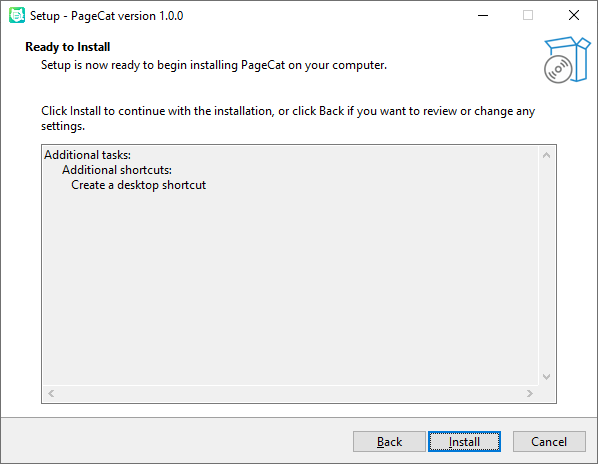
Follow the installation wizard, select an installation folder if desired, then click Install.
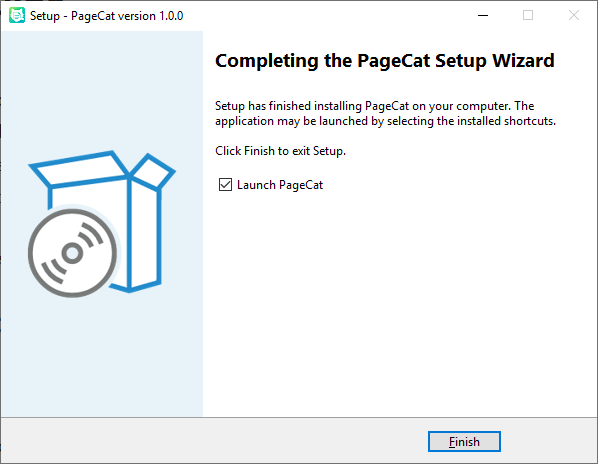
Wait for the installation to finish. Click Finish and launch PageCat.
1.3 Install PageCat on Mac
Open the downloaded pagecat.dmg file.
Drag PageCat into the Applications folder.
Launch PageCat from Applications. Allow the application to run if prompted by macOS.
2. Upgrade and Register PageCat
To unlock unlimited page captures and premium features, you’ll need to activate PageCat with a valid license.
2.1 Purchase a PageCat License
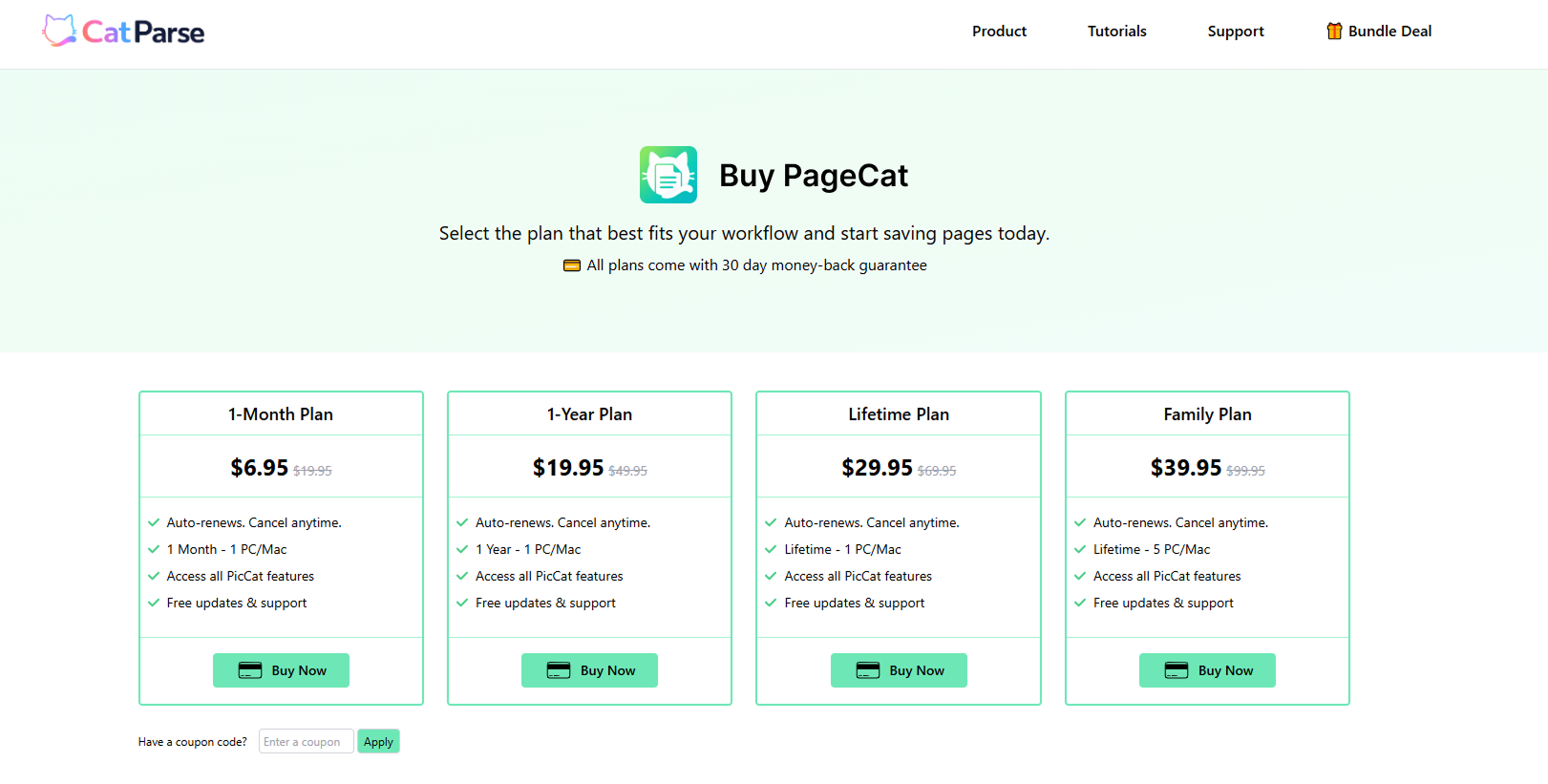
- Visit the PageCat pricing page, select the plan that best suits your needs and click Buy Now.
- Complete the purchase process and your PageCat registration information will be sent to your email address.
2.2 Register PageCat
- Open PageCat and click Register in the upper-right corner.
- Enter your registration key, then click Register to activate.
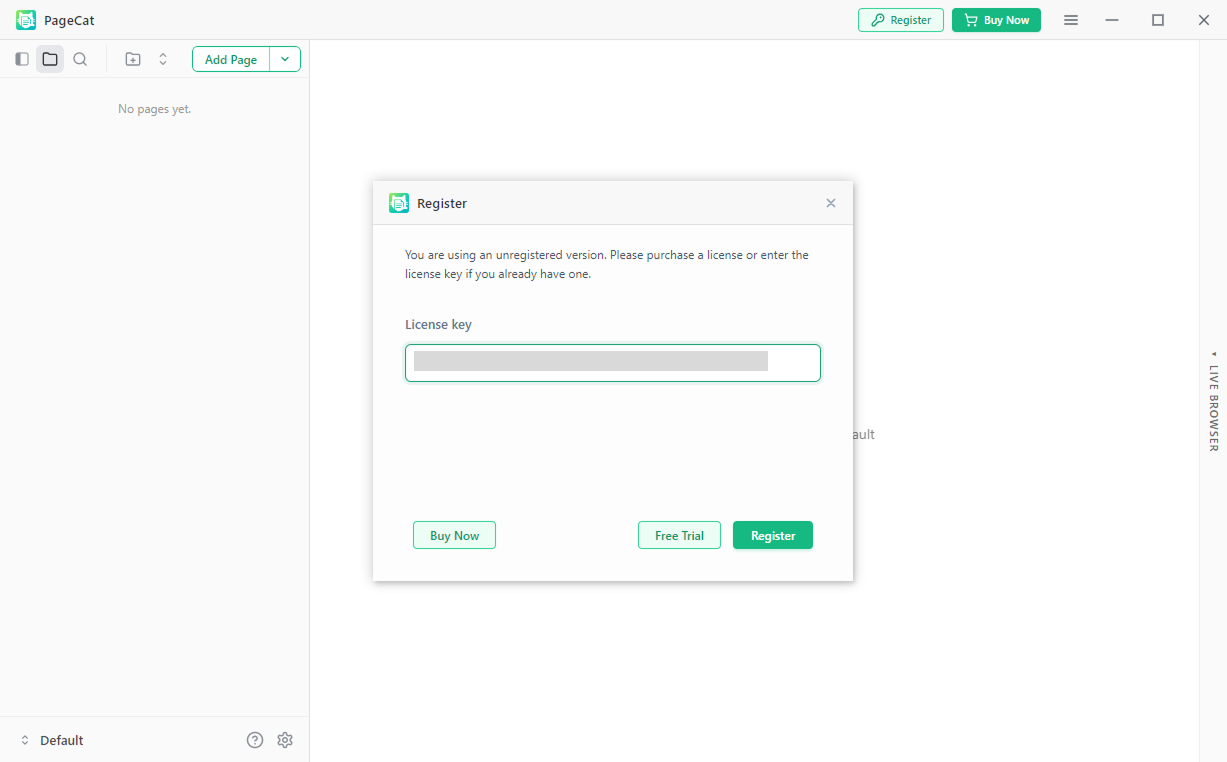
Once activated, all premium features will become available immediately.
3. Capture Webpages from URLs
PageCat makes it easy to save webpages directly from their URLs.
3.1 Capture a Single Page
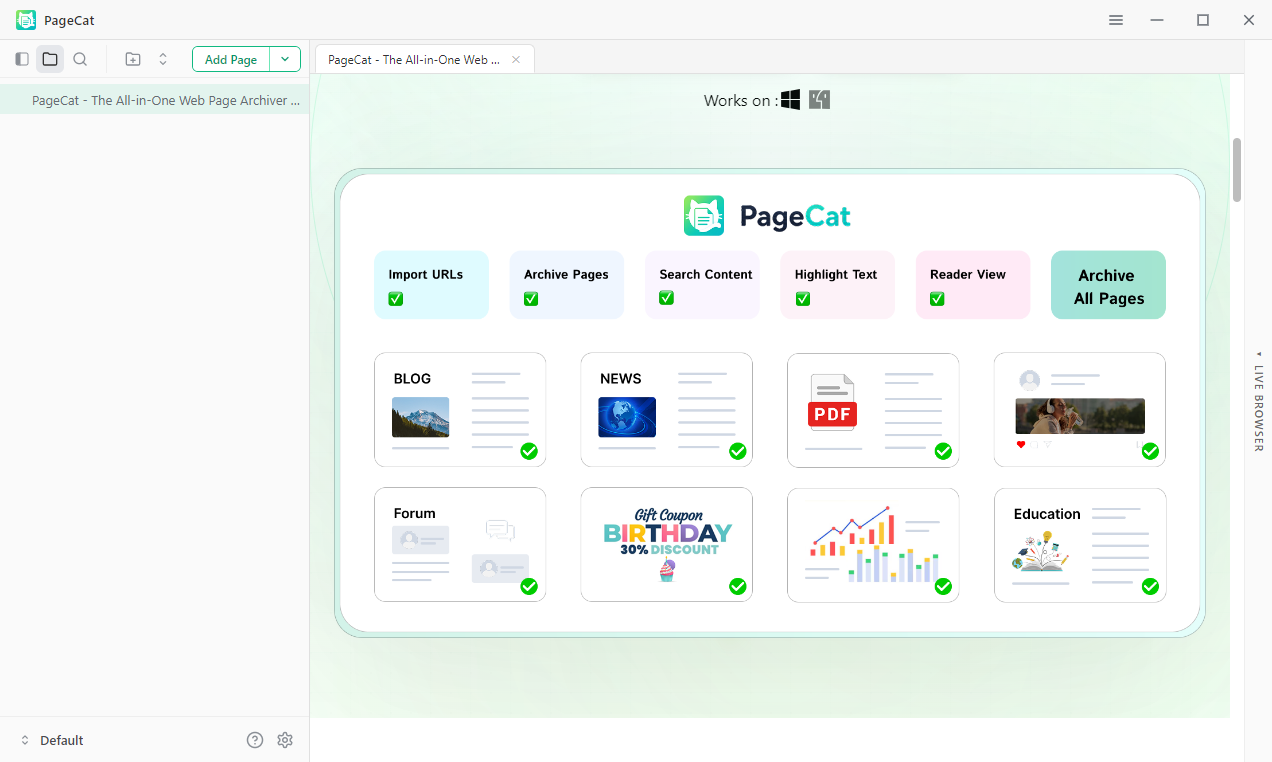
- Copy the webpage URL, then open PageCat and click Add Page.
- Scroll to load the webpage and PageCat will save its content automatically.
3.2 Capture Multiple Pages
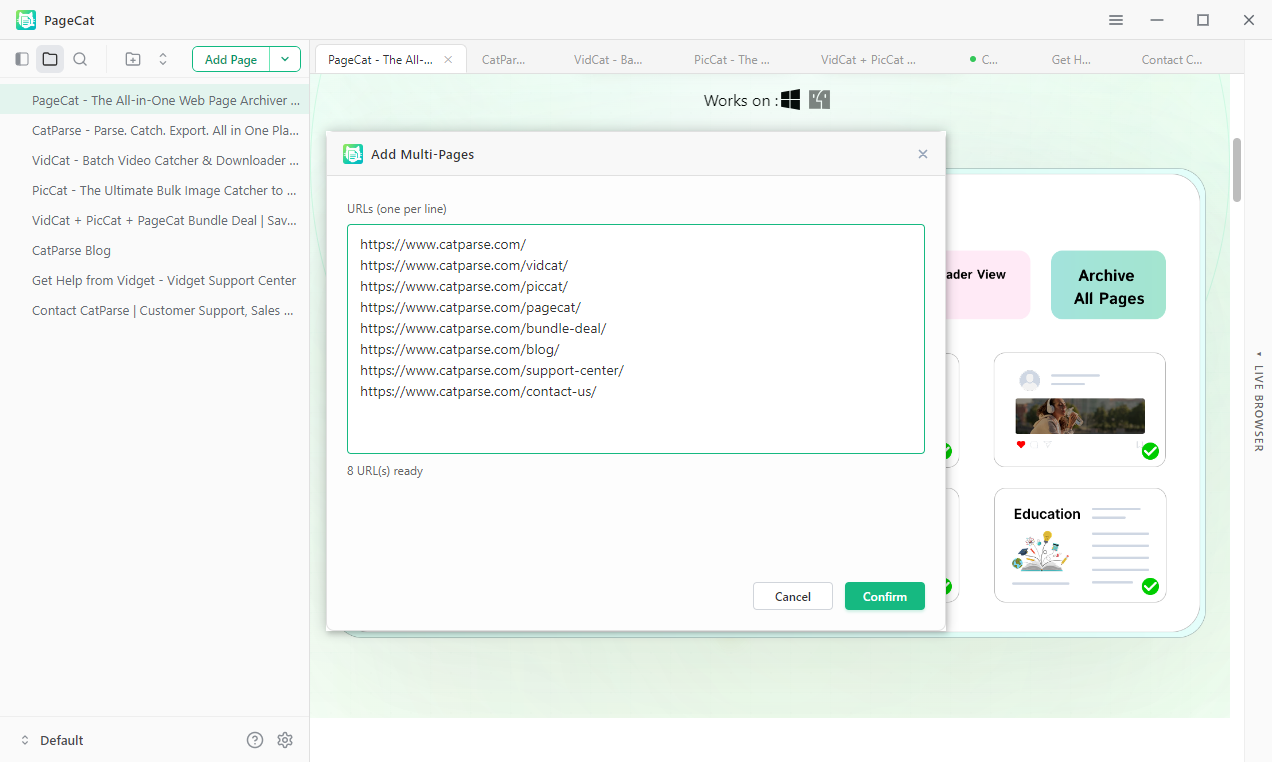
- Copy multiple webpage URLs and click the PageCat Add Multi Pages option.
- PageCat will process each page and add them to your collection automatically.
4. Search Saved Content
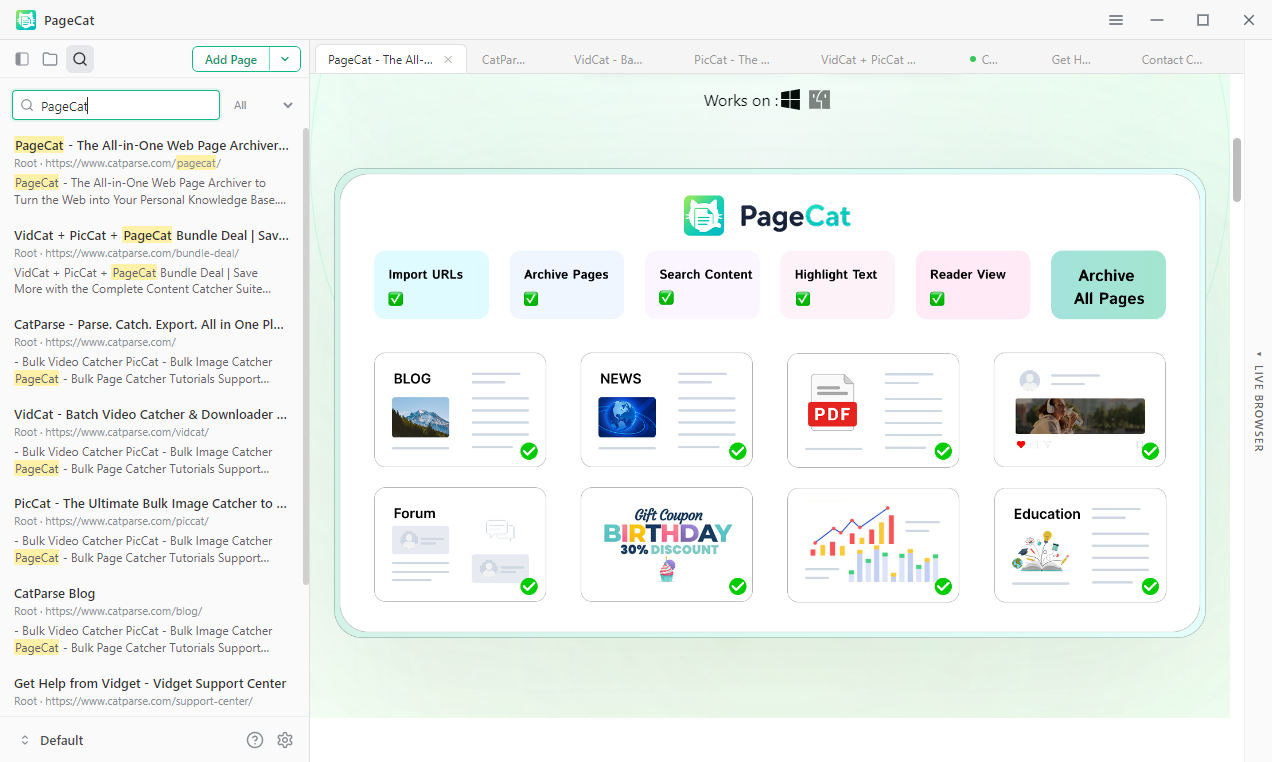
PageCat automatically indexes captured content, making it easy to find information later.
Search by:
- Page title
- Content text
Simply enter a keyword into the search box to instantly locate matching pages.
5. Highlight Important Text
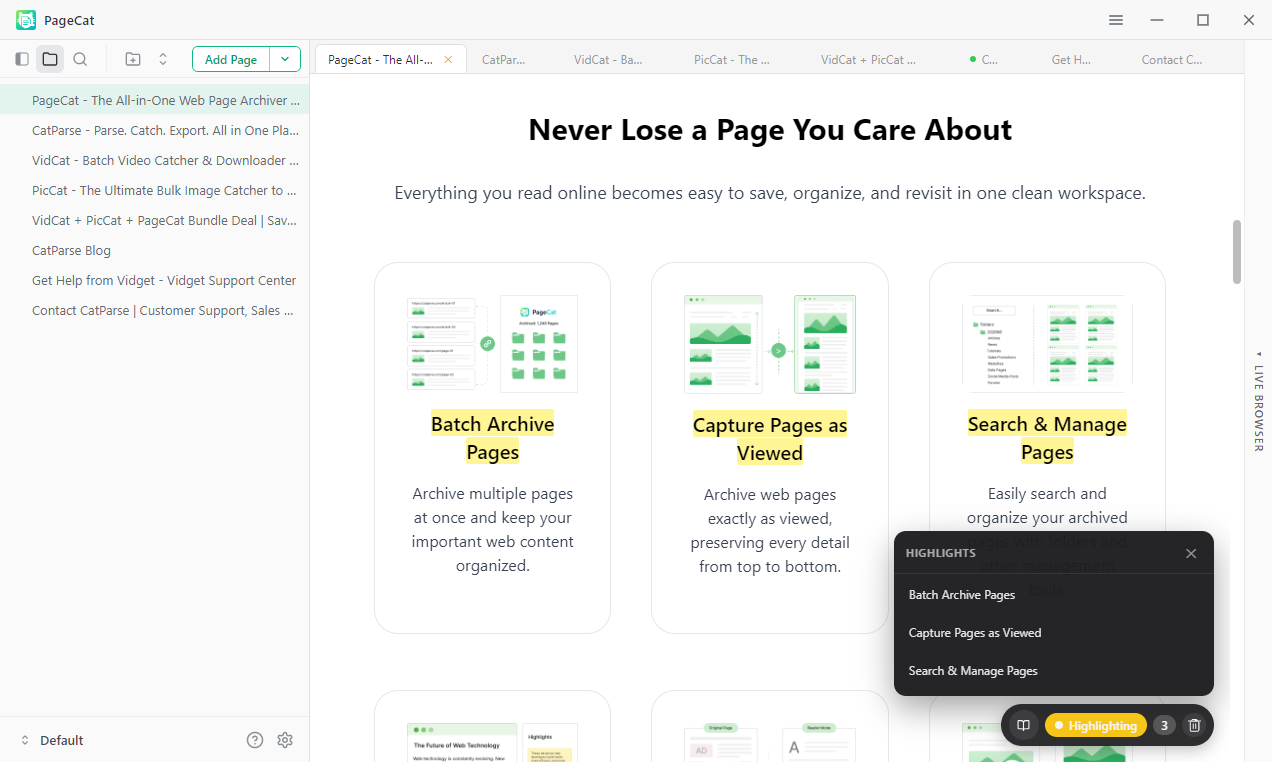
Highlighting helps you mark key information for future reference.
How to Highlight Content:
- Enable the Highlighter from the PageCat “≡” menu.
- Open a saved page, select the desired text and click Highlight.
Your highlights will remain attached to the page and can be revisited anytime.
6. Use Reader Mode
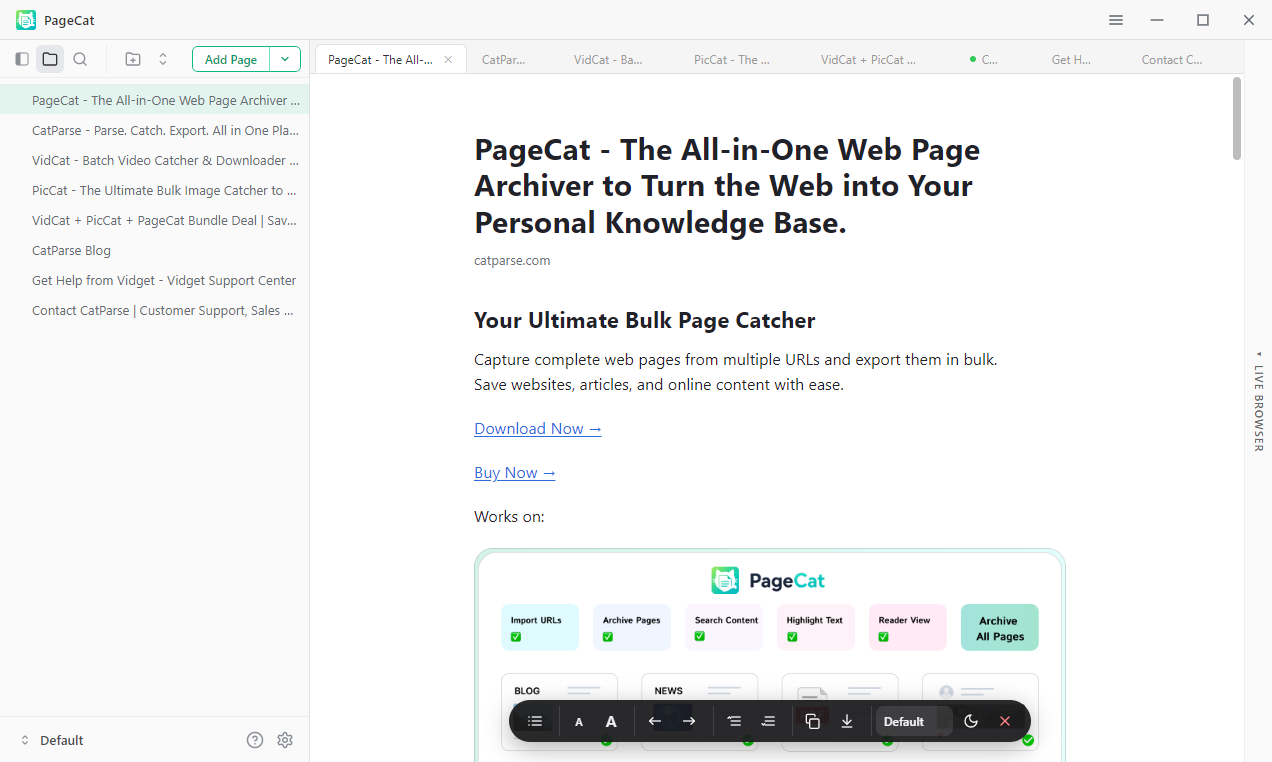
Reader Mode removes distractions and presents content in a clean, readable format.
Open a captured page and click Reader from the PageCat “≡” menu.
PageCat will simplify the page by removing:
- Advertisements
- Pop-ups
- Navigation menus
- Sidebars
- Other distracting elements
This allows you to focus on the main content.
8. Organize Your Library
As your collection grows, PageCat helps keep everything organized.
Available Management Tools:
- Create folders
- Rename pages
- Delete archived pages
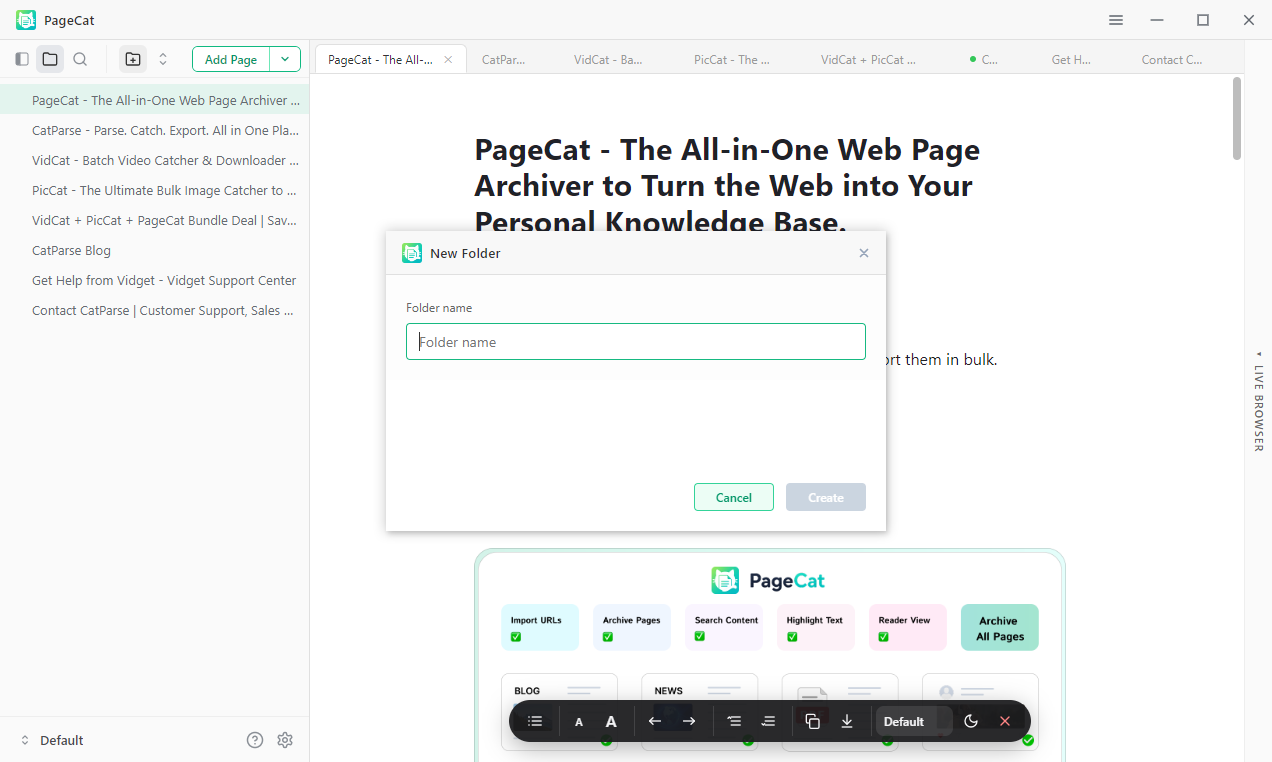
These tools make it easy to maintain a structured knowledge library.
9. Update PageCat
Keeping PageCat up to date ensures access to the latest features, performance improvements, and website compatibility updates.
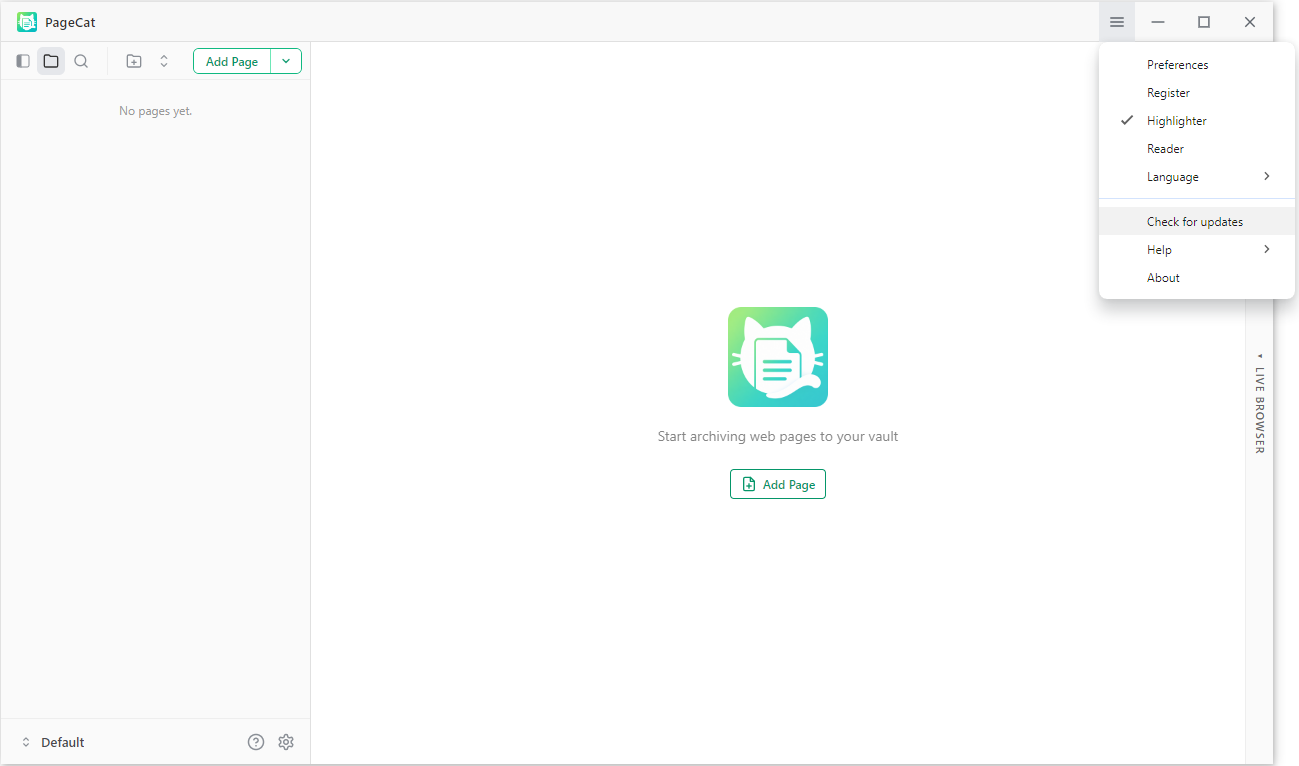
Check for Updates:
- Open PageCat, click the “≡” Menu icon and select Check for Updates.
- Follow the on-screen instructions if a new version for PageCat is available.
We recommend regularly updating to the latest version for the best webpage saving experience.