Your Ultimate Bulk Page Catcher
Capture complete web pages from multiple URLs and export them in bulk.
Save websites, articles, and online content with ease.
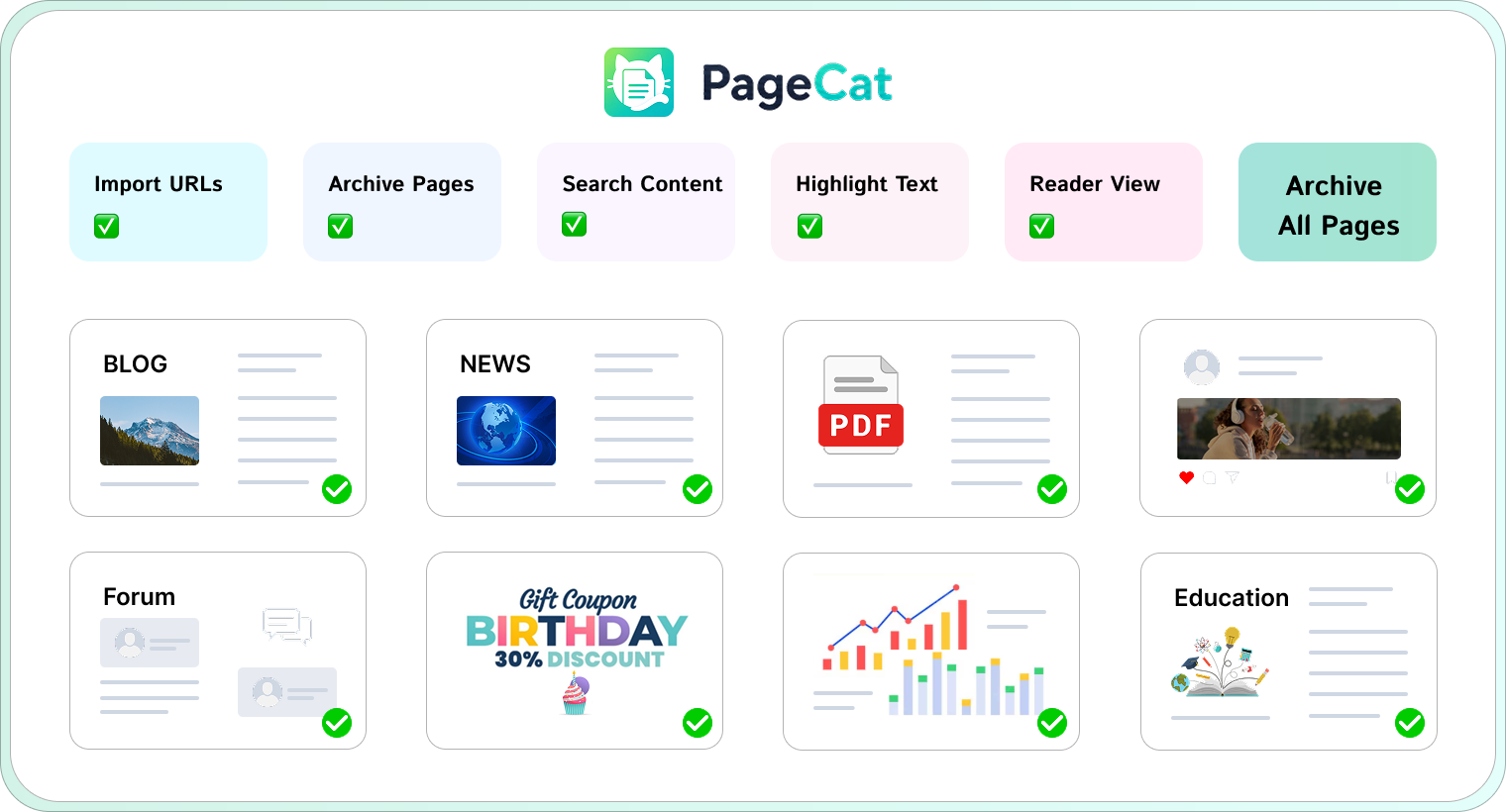

 Capture Pages as Viewed
Archive web pages exactly as viewed, preserving every detail from top to bottom.
 Search & Manage Pages
Easily search and organize your archived pages with folders and other management tools.
 Highlight Text
Highlight important text, add notes, and build your personal knowledge base while reading.
 Reader Mode
Remove ads, sidebars, and distractions. Enjoy clean, focused reading in a comfortable view.
 Screenshot Full Page
Take high-quality full page screenshots and export them as images (PNG) instantly.
Catch Videos in 4 Easy Steps
From URL to download folder in just a few clicks.
Add Pages
Paste URLs or add pages you want to archive in bulk.
Load Content
Scroll to load full content and PageCat will archive all pages.
Highlight Text
Select and highlight key content you want to keep.
Search & Organize
Easily find saved pages and organize them into folders.
Technical Specifications
| Content Support | HTML, CSS, JS, images, fonts |
| Organization | Folders, full-text search |
| Language Support | English, German, French, Spanish, Portuguese, Italian, Korean, Japanese, Chinese |
| Supported OS | Windows 11, 10 (64-bit) / macOS 10.13 or later |
| Memory (RAM) | 4 GB minimum (8 GB recommended) |
| Storage Space | 500 MB available disk space |
Frequently Asked Questions
Everything you need to know about PageCat.
Is PageCat free? ⌄
PageCat offers a 7-day free trial, giving you full access to all features. After the trial ends, you can choose a subscription or lifetime plan that best fits your needs.
Does PageCat capture the entire page? ⌄
Yes. Scroll to load the full page and PageCat will archive the complete webpage.
Can I archive multiple pages at once? ⌄
Yes. PageCat supports batch page archiving, allowing you to save hundreds of web pages from URLs with just a few clicks.
Can I take screenshots of web pages? ⌄
Absolutely. PageCat can generate high-quality full-page screenshots and save them for reference, sharing, or documentation.
What is Reader Mode? ⌄
Reader Mode removes ads, sidebars, popups, and other distractions, providing a clean reading experience focused on the main content.
Does PageCat work offline? ⌄
Yes. Once pages are saved to your local library, you can access and review them even without an internet connection.
What should I do if PageCat is not working properly? ⌄
Try restarting PageCat and updating to the latest version; if the problem persists, please contact our support team for assistance.
Ready to Catch Pages Faster?
Download VidCat today and start saving webpages effortlessly.