PicCat User Guide
Welcome to PicCat, a powerful bulk image catcher that helps you discover, preview, filter, and save images from websites with ease. Whether you need to download a few images or thousands at once, PicCat provides a fast and intuitive solution for collecting online images in their original quality.
This guide covers everything you need to know to install, activate, and start using PicCat.
1. Download and Install PicCat
1.1 Download PicCat
Select your operating system and download the latest version of PicCat.
1.2 Install PicCat on Windows
Find, click and run the downloaded piccat.exe installer.
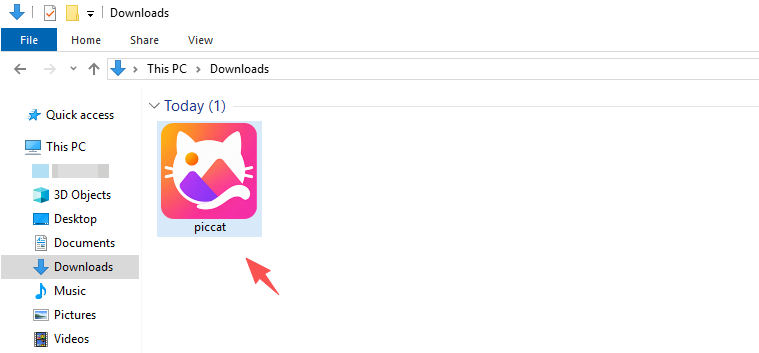
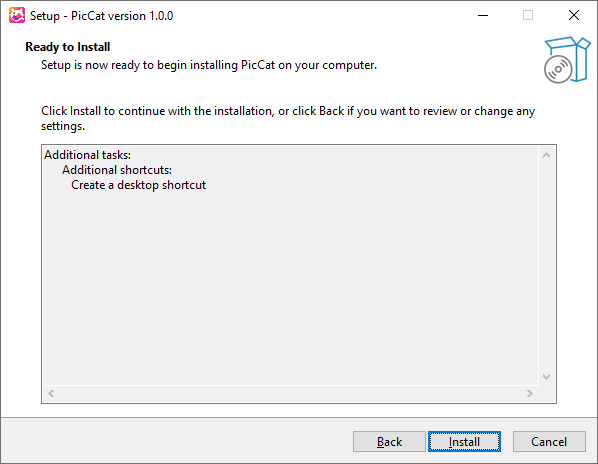
Follow the installation wizard > Choose an installation folder if needed > Click Install to begin setup.
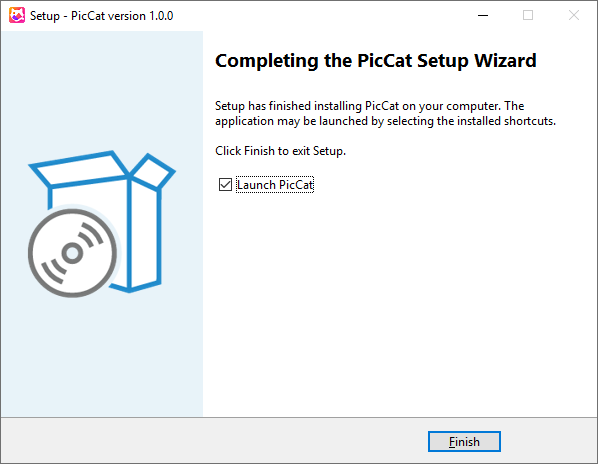
Once installation is complete, click Finish. Launch PicCat from your desktop or Start Menu.
1.3 Install PicCat on Mac
Find and click the downloaded piccat.dmg file.
Drag the PicCat icon into the Applications folder.
Open the Applications folder and launch PicCat. If macOS displays a security warning, allow PicCat to run.
2. Upgrade PicCat and Register
Purchasing a license unlocks all premium features, including unlimited image downloads, batch processing, and advanced filtering tools.
2.1 Purchase a PicCat License
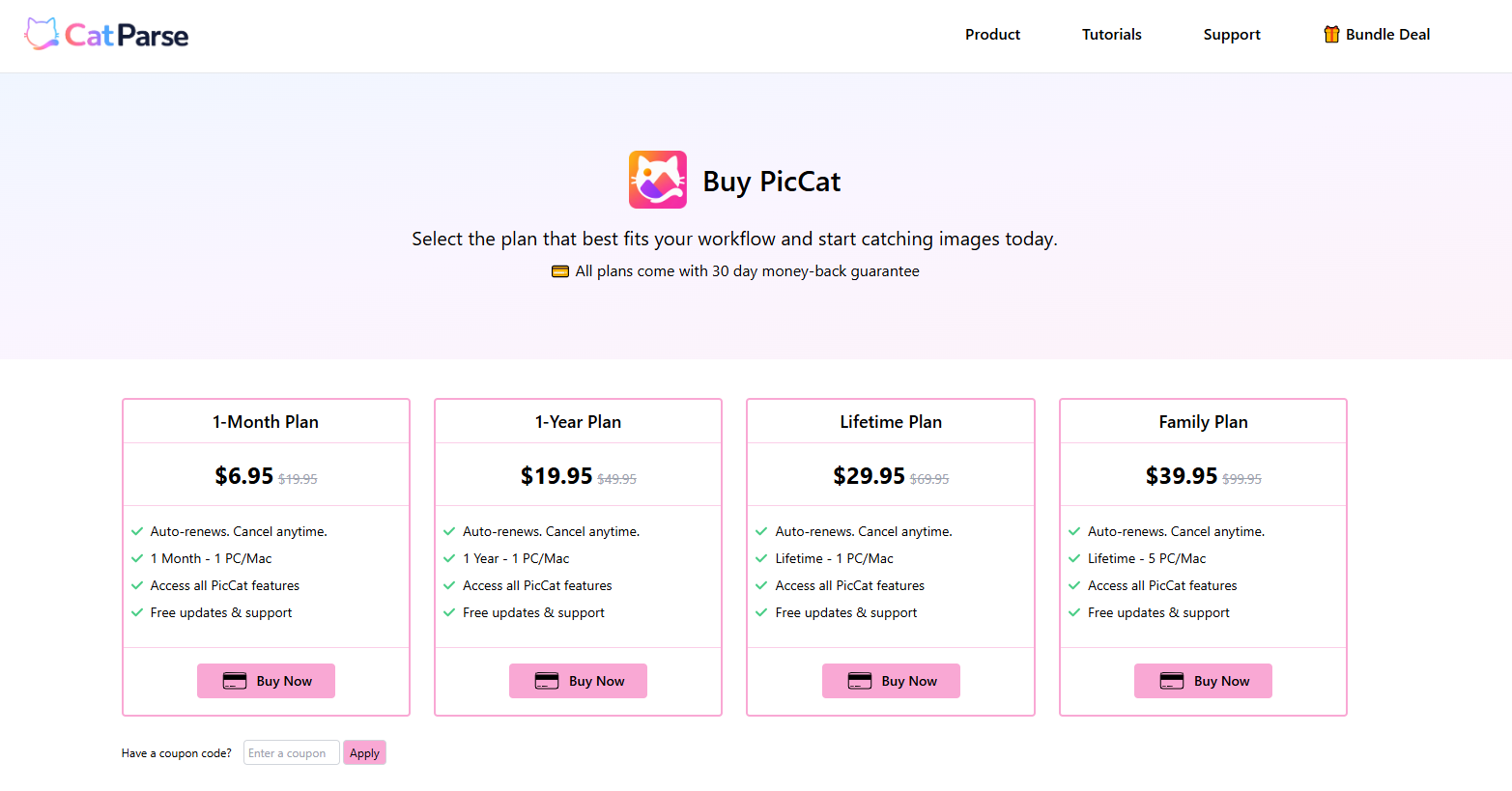
- Visit the PicCat pricing page, select the plan that best fits your needs and click Buy Now.
- Complete the checkout process.
- Your PicCat license information will be delivered to your email after purchase.
2.2 Activate PicCat
- Open PicCat and click Register in the upper-right corner.
- Enter your PicCat registration key, then click Register to activate the software.
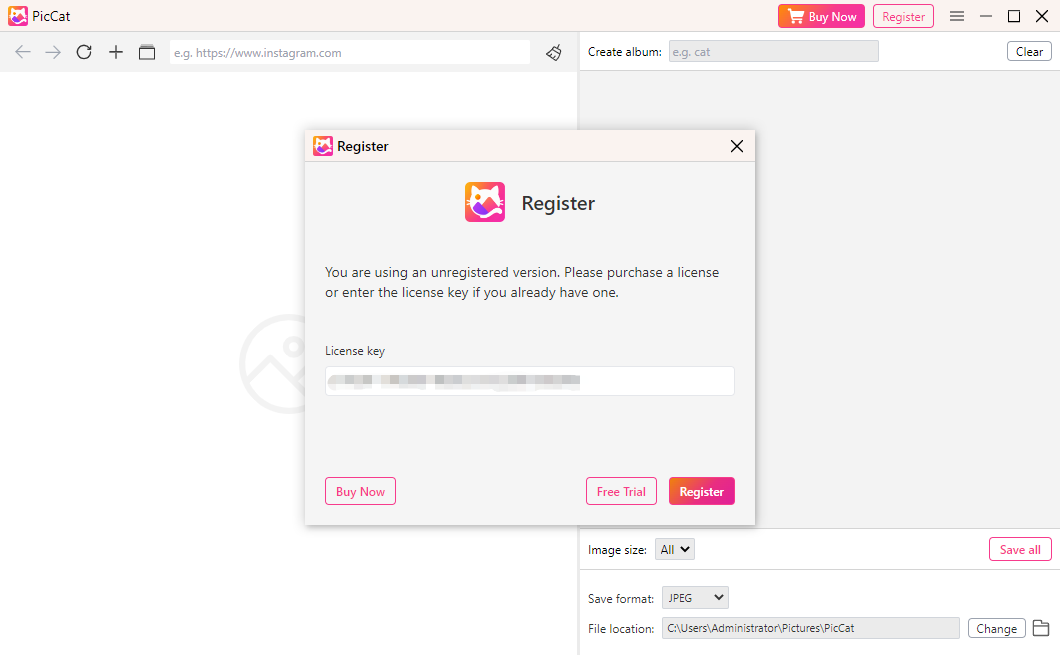
After successful activation, all premium features will be available immediately.
3. Download Images from URLs
PicCat supports image extraction from webpages, galleries, profiles, and direct image URLs.
3.1 Download Images from a Webpage
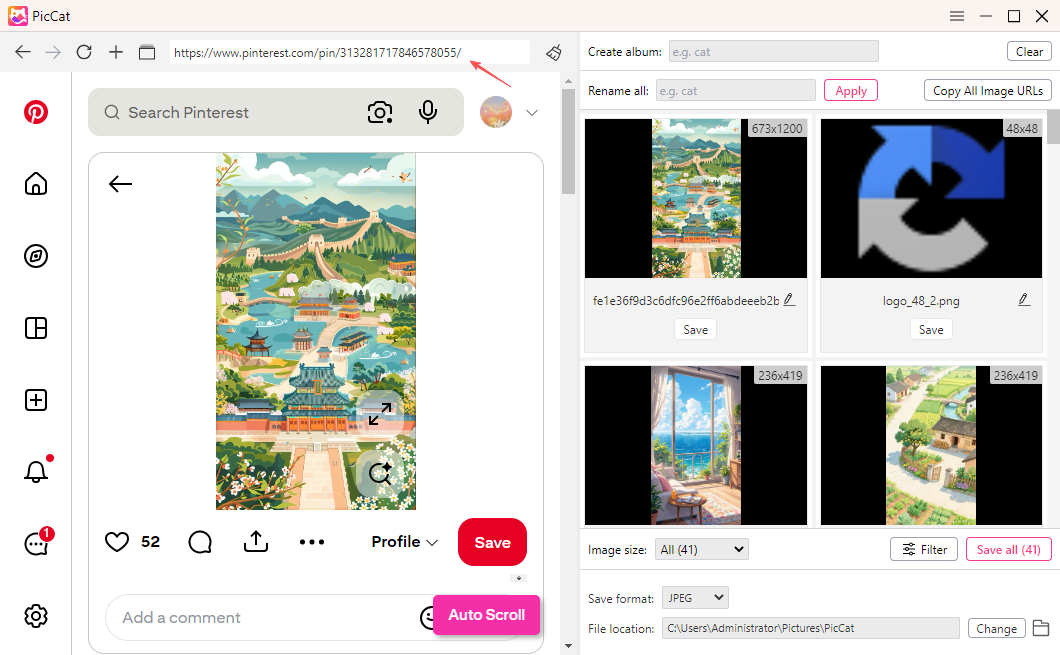
- Copy the webpage URL and open it with PicCat’s built-in browser.
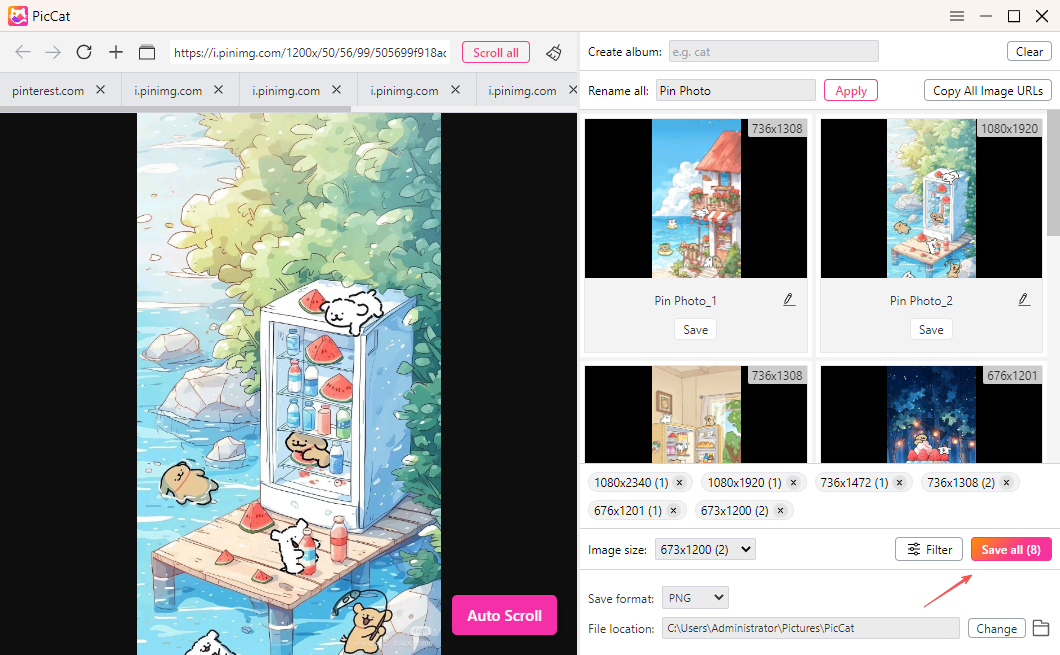
- Scroll the page and PicCat will automatically analyze the page and display all detected images.
3.2 Download Images from Multiple URLs
- Copy webpage or image URLs.
- Open PicCat, click the Multiple URLs icon and paste all URLs into the task list.
- Click Start, PicCat will open them in seperate tabs and start the scan.
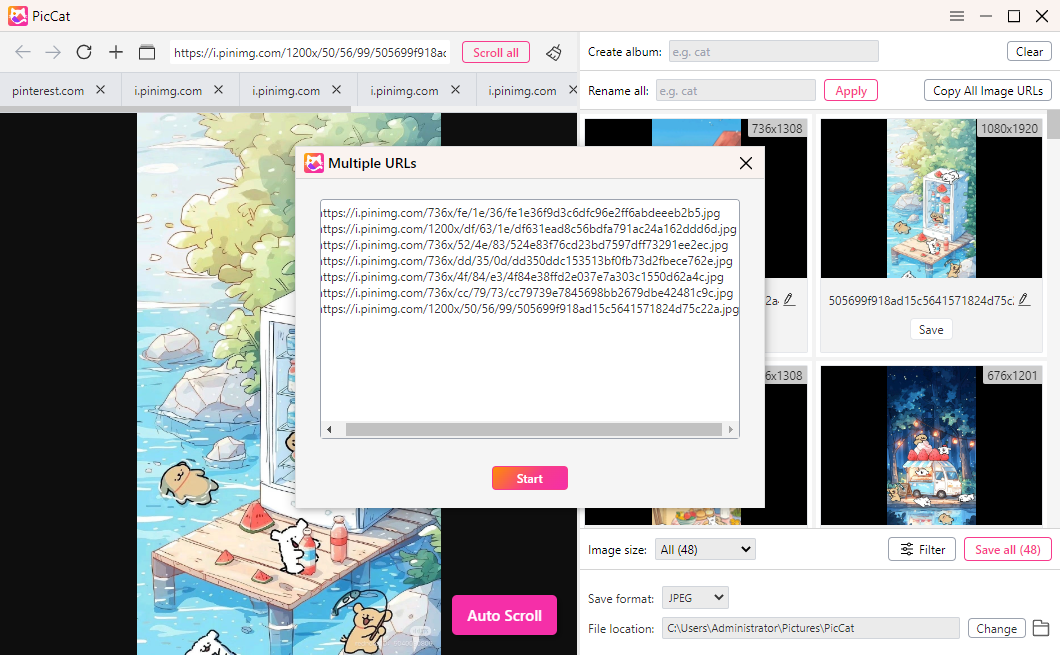
PicCat will extract images from each page and prepare them for download.
4. Filter Images
When a webpage contains a large number of images, PicCat’s filtering tools help you quickly locate the images you want to save.
4.1 Filter by Size
Display only images that meet your preferred dimensions.
You can filter images by:
- Width
- Height
- Resolution
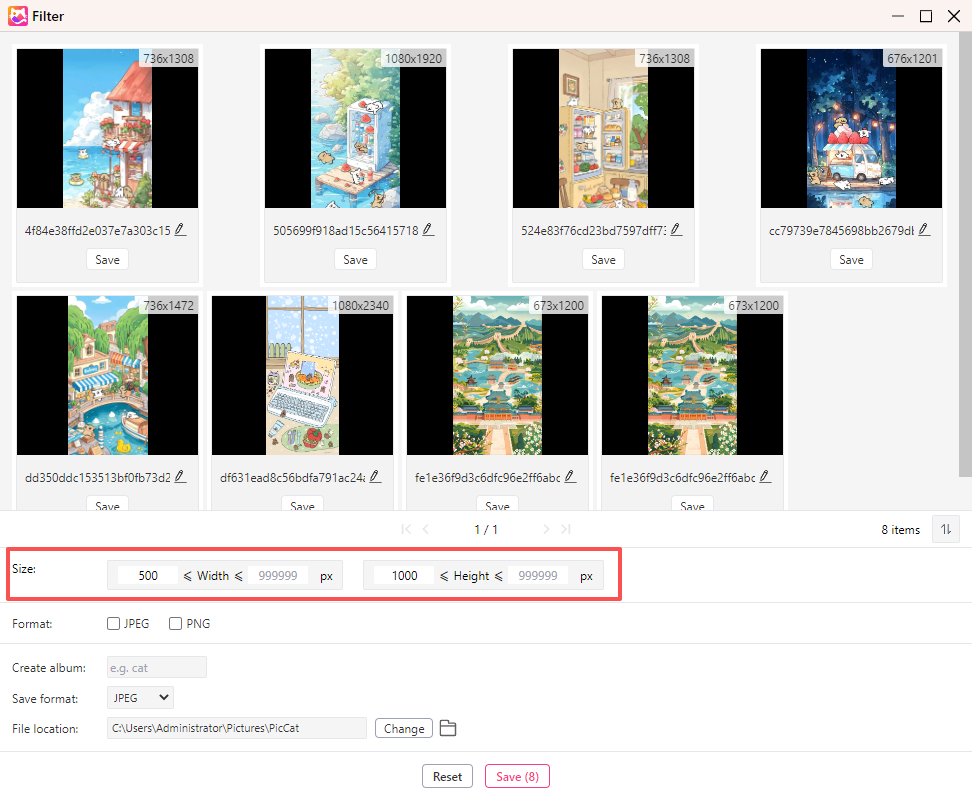
This is useful for excluding thumbnails, icons, and other low-resolution images.
4.2 Filter by Format
Show only images in specific file formats.
Supported formats include:
- JPG / JPEG
- PNG
- WEBP
- GIF
- SVG
- BMP
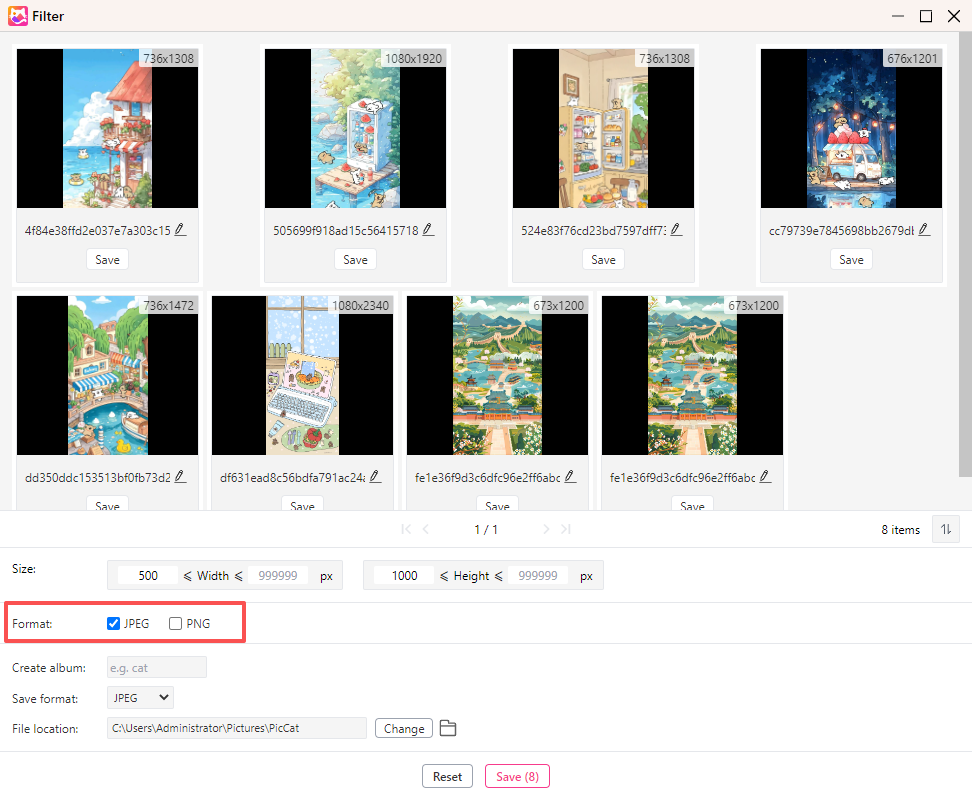
For example, you can display only PNG images or hide GIF files before exporting.
After applying filters, PicCat will instantly update the results so you can select and export only the images you need.
5. Batch Rename Images
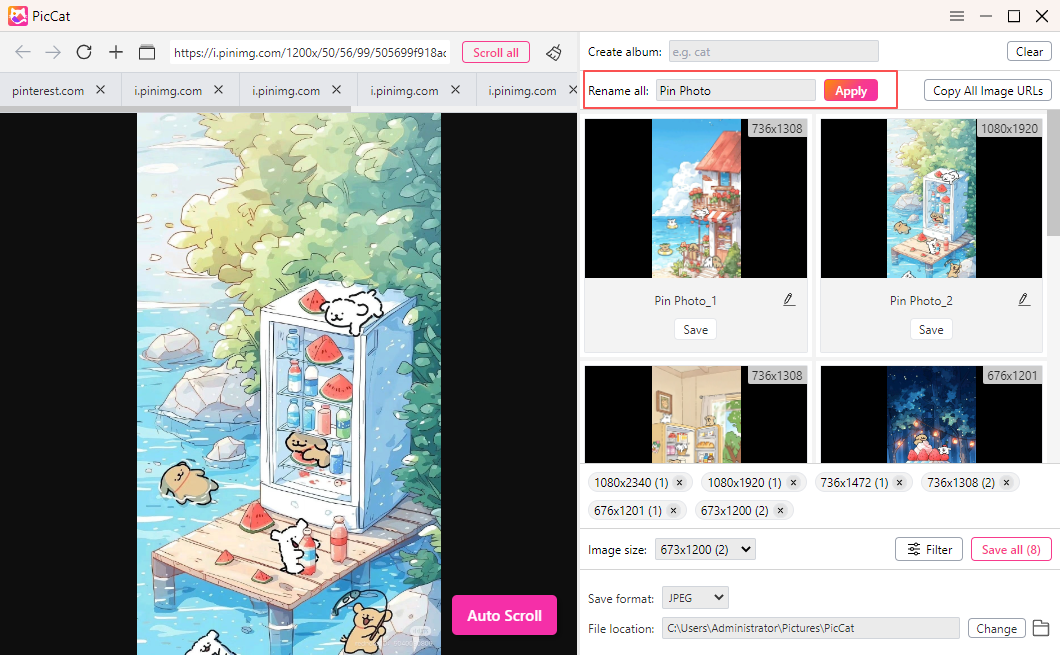
PicCat includes built-in batch renaming tools to help organize downloaded images.
How to batch rename images:
- Select images.
- Find the Rename all option and enter your filename prefix.
- Apply the changes.
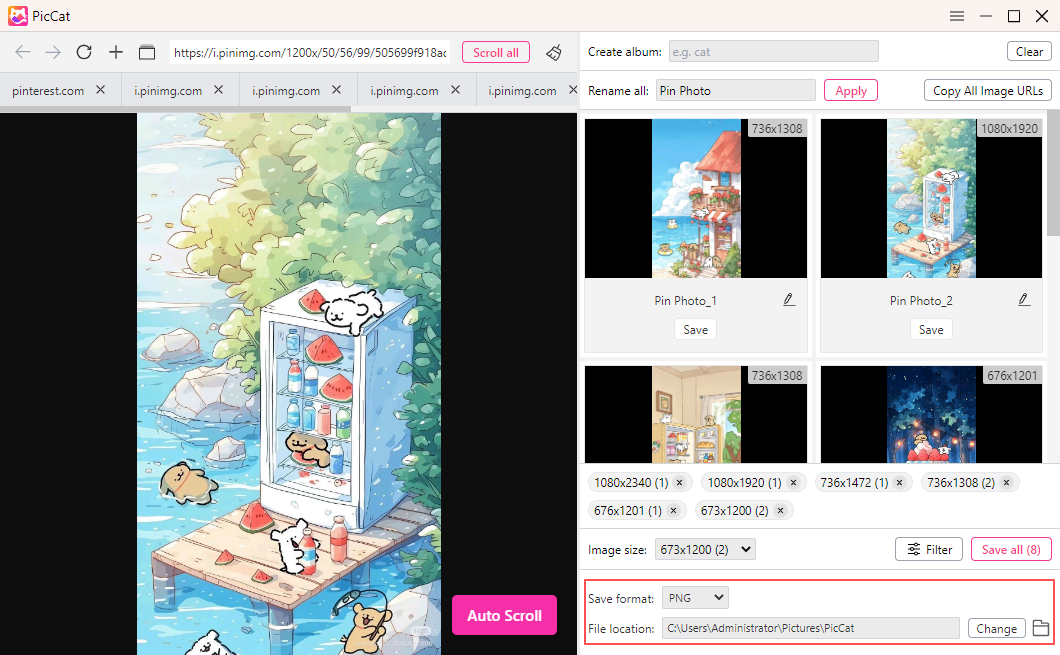
6. Set Output Options
Before exporting images, you can customize output format and file location.
7. Copy All Detected Image URLs
PicCat allows you to copy image URLs without downloading the images.
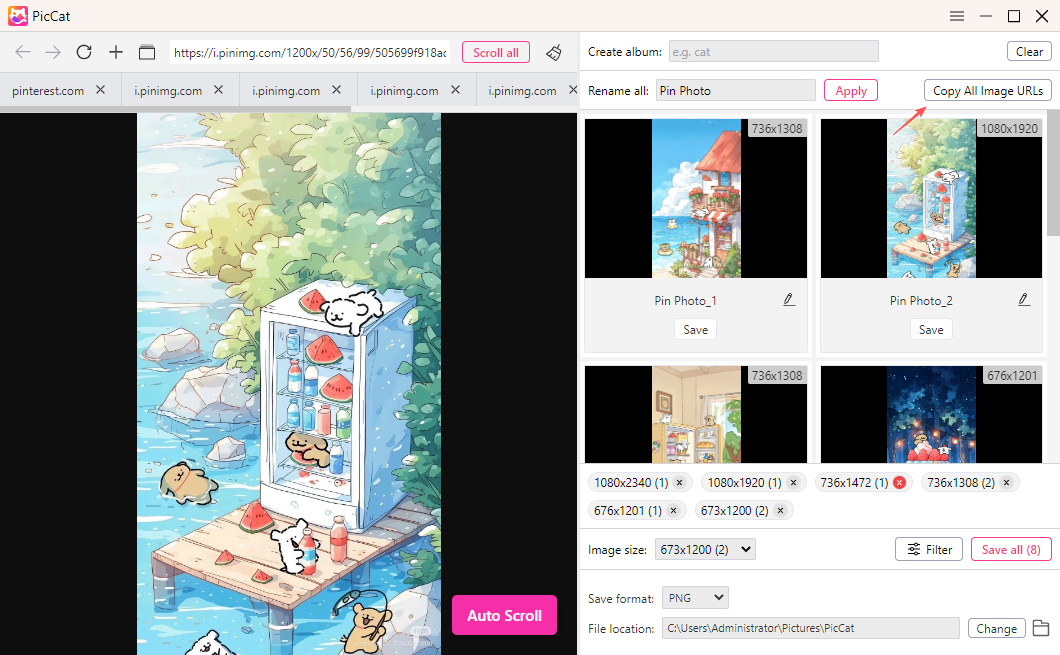
You can then paste the URLs into a text file, spreadsheet, or another application.
8. Export Selected Images
After filtering and organizing images, you can export them to your computer by clicking the “Save all” button.
9. Update PicCat
Keeping PicCat updated ensures compatibility with websites and access to the latest features.
Steps:
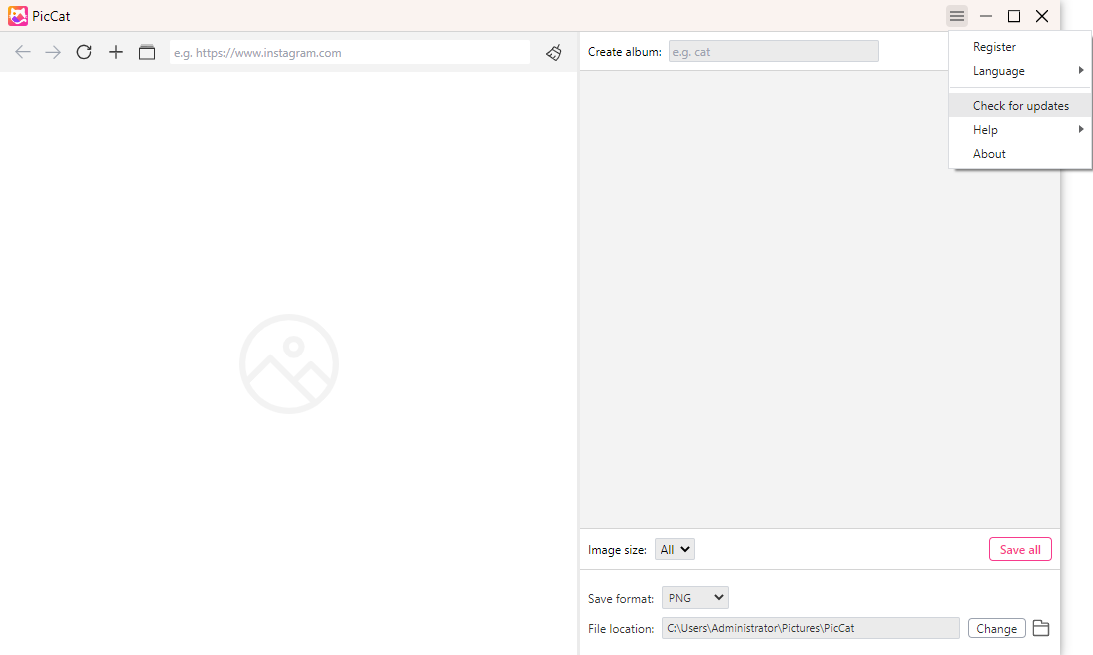
- Open PicCat, click the Menu icon and select Check for Updates.
- Follow the on-screen instructions if a new version for PicCat is available.
We recommend updating regularly to ensure the best performance and image detection accuracy.