VidCat User Guide
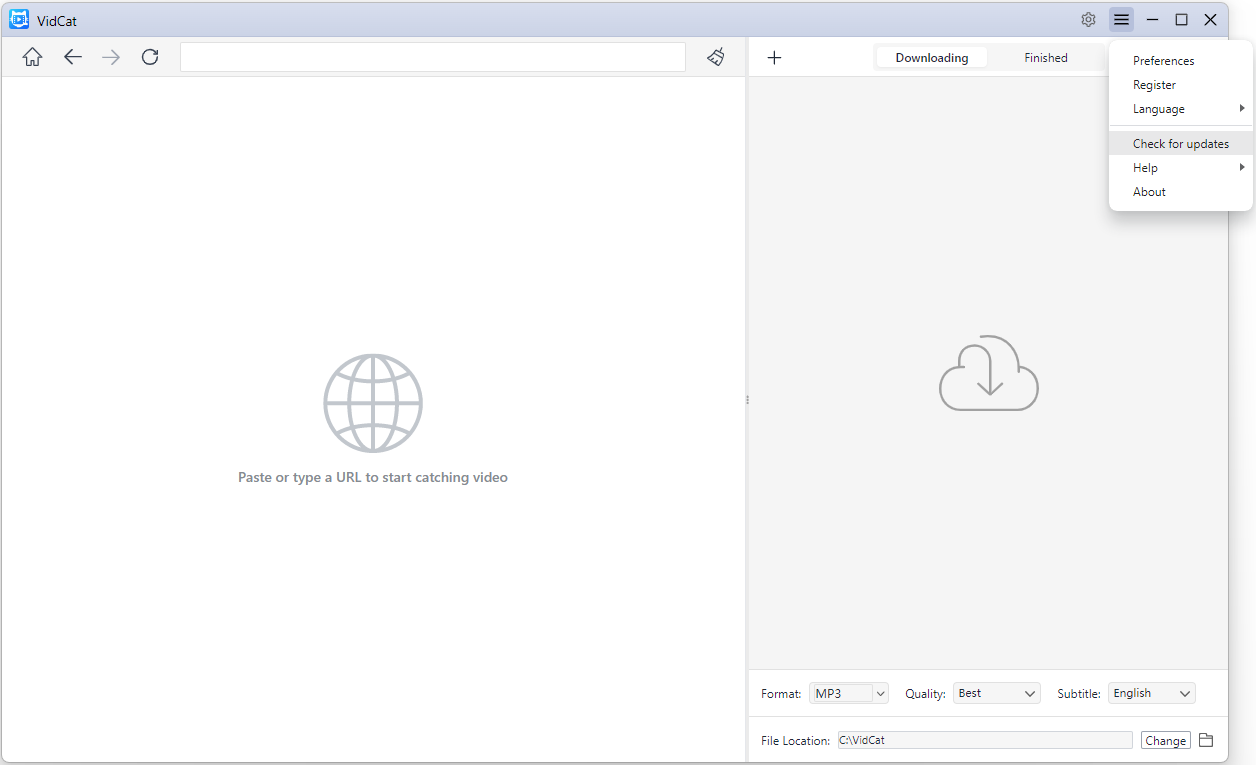
Welcome to VidCat, your all-in-one video catcher and downloader. VidCat helps you catch and download videos, audio files, and playlists from supported websites in just a few clicks. Whether you’re saving a single video, an entire playlist, or browsing content directly within the built-in browser, VidCat provides a fast and intuitive experience with support for high-quality downloads, batch processing, and flexible output settings.
This guide will walk you through everything you need to know to get started with VidCat.
1. Download and Install VidCat
1.1 Download VidCat
Choose your OS, click the download button below to get the latest VidCat installer.
1.2 Install VidCat on Windows
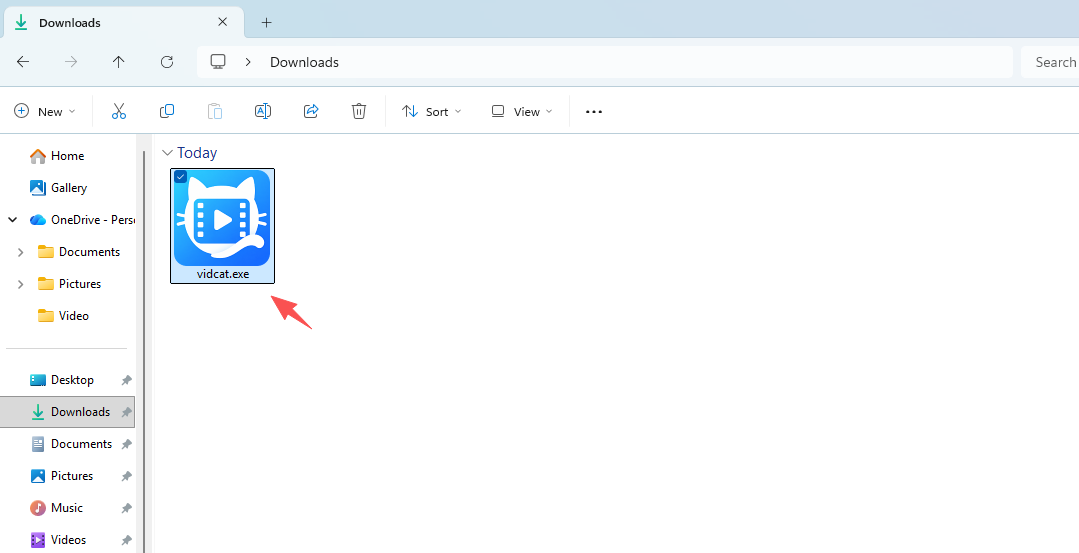
Double-click the downloaded vidcat.exe file.
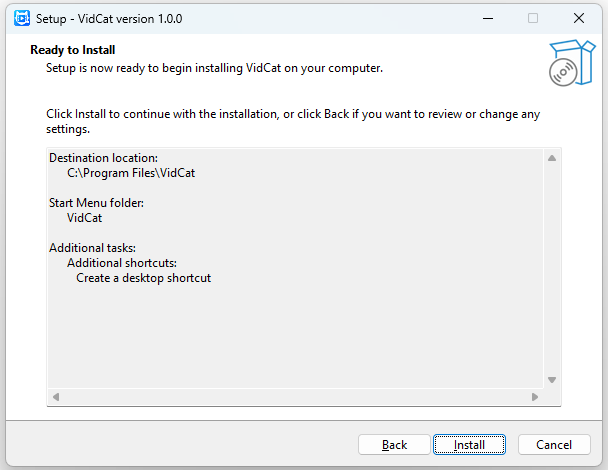
Follow the installation wizard instructions, choose an installation location if desired; Click Install and wait for the setup to complete.
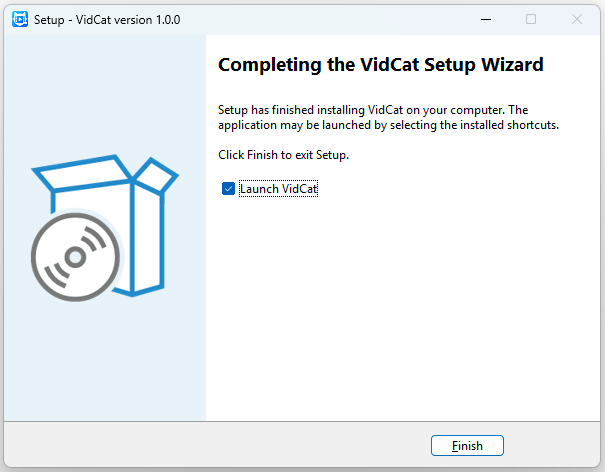
Click “Finished” and launch VidCat from your desktop.
1.3 Install VidCat on Mac
Open the downloaded vidcat.dmg file.
Drag the VidCat icon into the Applications folder.
Open Applications and launch VidCat. If prompted by macOS security settings, allow VidCat to run.
2. Upgrade VidCat and Register
To unlock all premium features, you’ll need to purchase a VidCat license and activate your copy of the software.
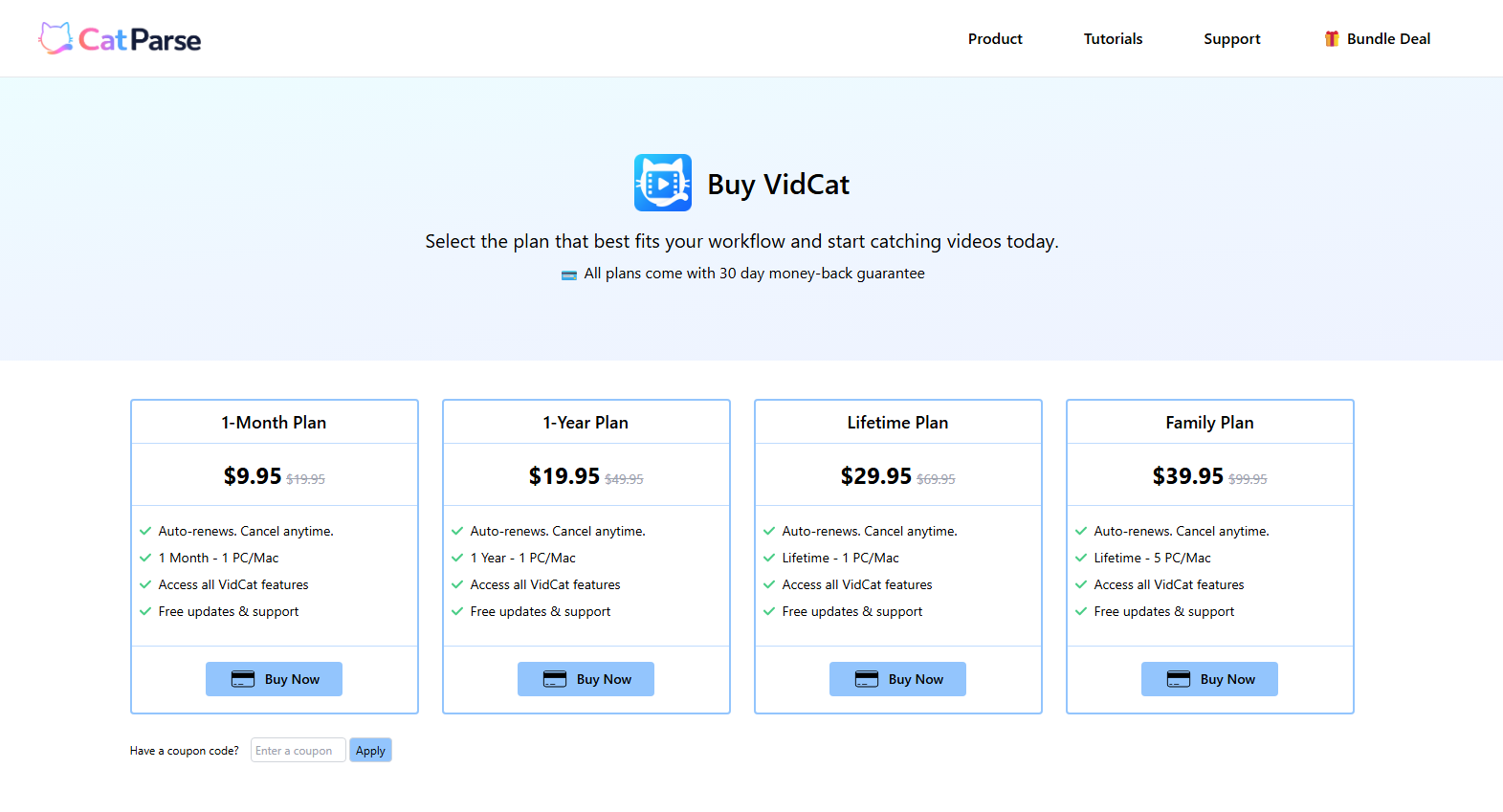
2.1 Purchase a VidCat License
- Visit the VidCat pricing page, choose the plan that best fits your needs and click Buy Now.
- Complete the checkout process.
- After payment, your license information will be sent to the email address used during purchase.
2.2 Register VidCat
After purchasing a license:
- Open VidCat on your computer and click the Register button in the upper-right corner.
- Enter the registration key received after purchase, then click Register.
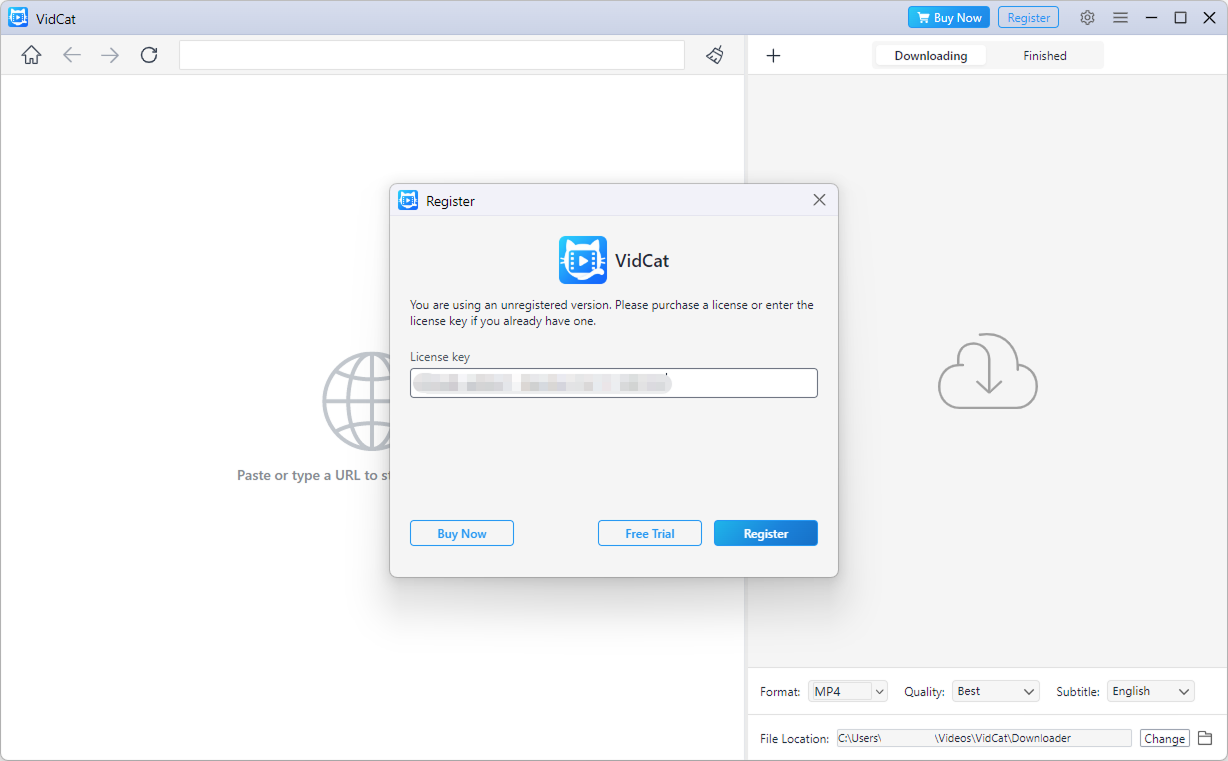
Once registration is successful, all premium features will be unlocked and ready to use.
3. Configure Download Settings
Before downloading content, you may want to customize your download preferences.
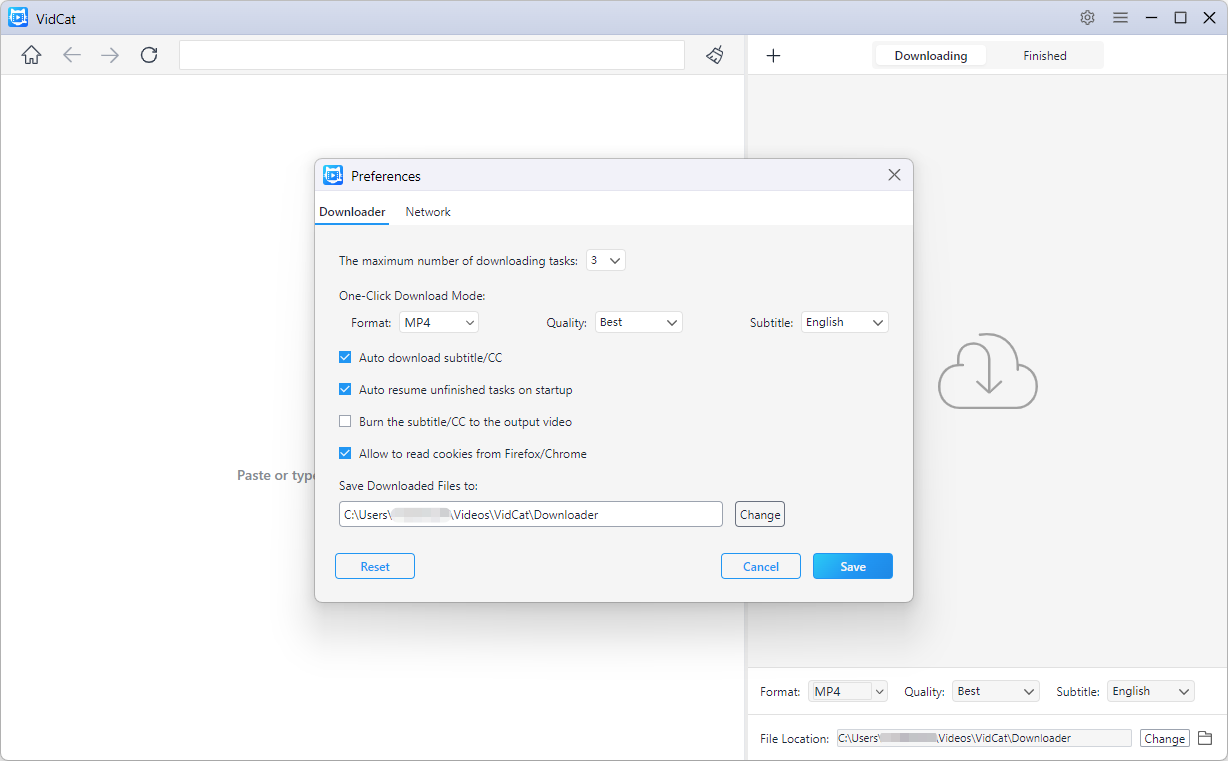
1) Open Settings
Find and click Preferences to visit the Download Settings panel.
VidCat allows you to customize your download experience through the Settings panel.
2) Download Format
Choose your preferred output format for downloaded media.
Supported formats include:
- Video: Original/MP4/MKV/MOV/FLV/AVI/WMV/3GP
- Audio: MP3/AAC/M4A/WAV/MKA/FLAC
VidCat will automatically use your selected format whenever possible.
3) Download Quality
Set the default quality for video and audio downloads.
Available options include:
- Best Available
- 8K
- 4K
- 1440p
- 1080p
- 720p
- 480p
- 360p
- 240p
4) Subtitle Preferences
Control how subtitles are handled during downloads.
Options include:
- Audo download subtitle/CC
- Select preferred subtitle language
- Burn the subtitle/CC to the output video
Downloaded subtitles are saved alongside the media file.
5) Download Location
Select your preferred folder, click Save, then all future downloads will be stored in the selected location.
3. Download from URLs
VidCat supports downloading from direct video URLs, audio URLs, and playlist URLs.
3.1 Download a Video from a URL
- Copy the video URLs from your browser.
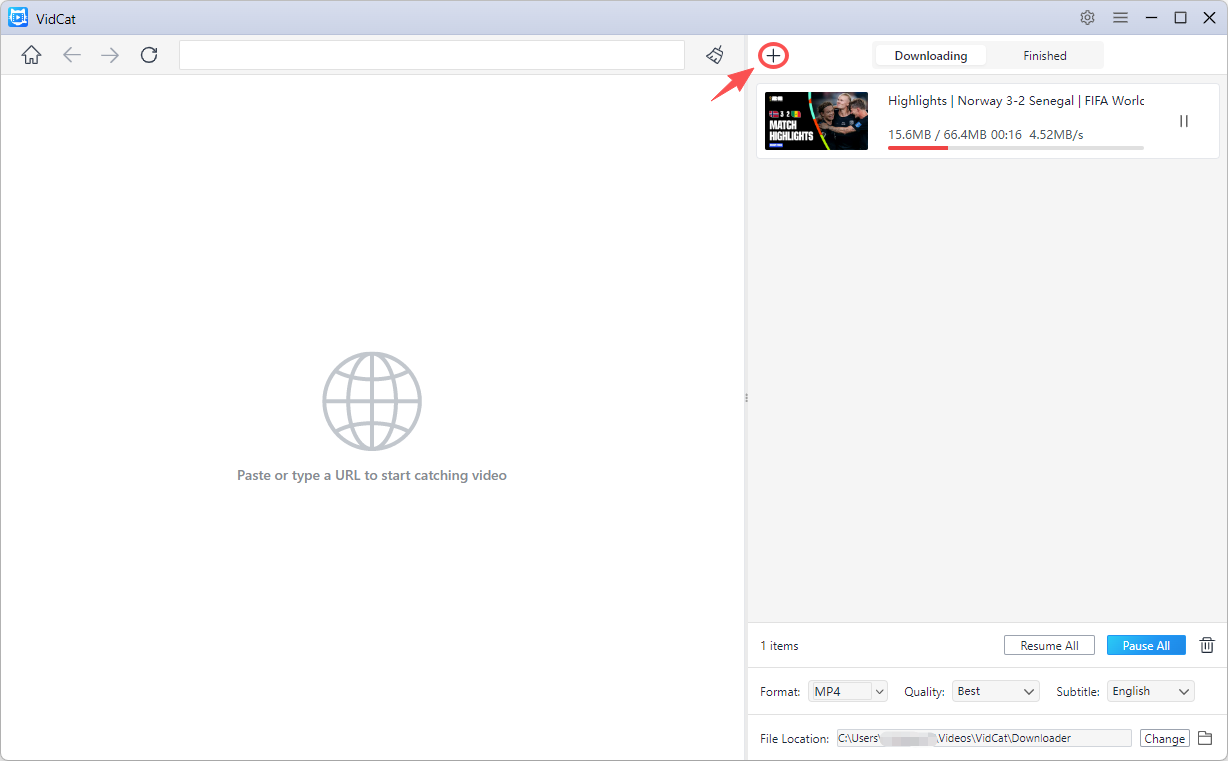
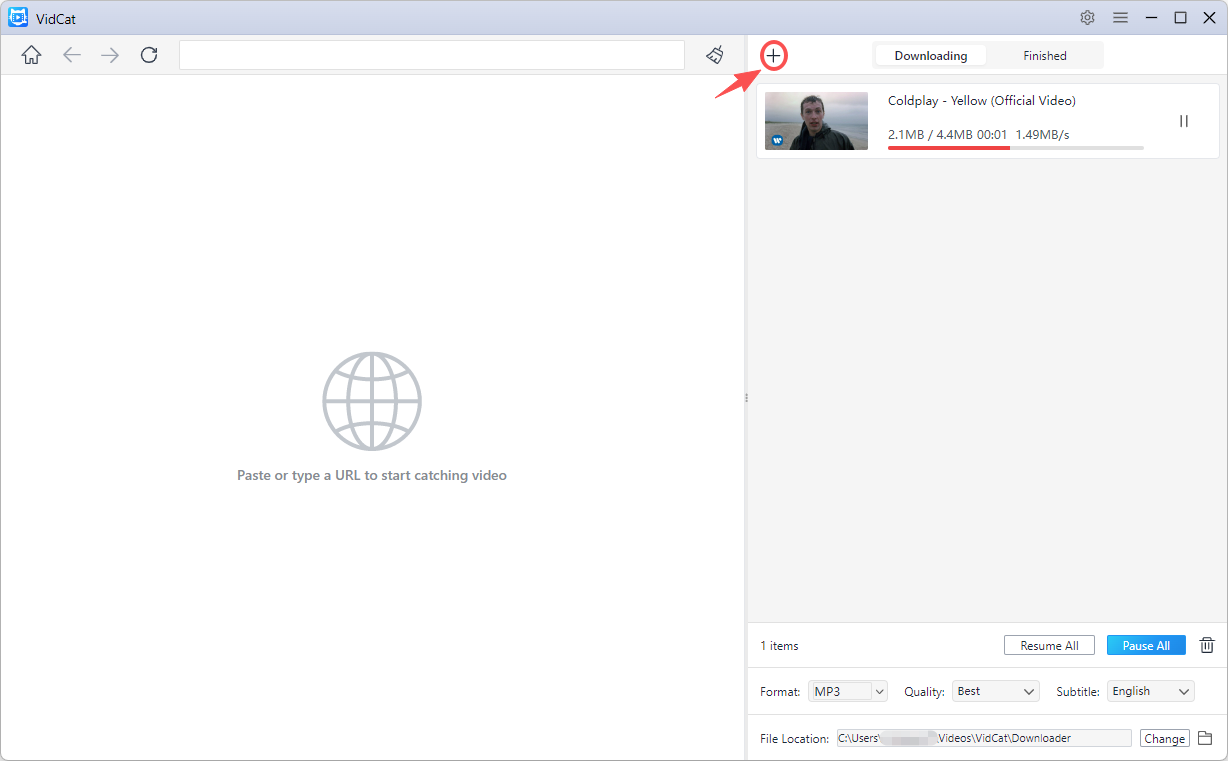
- Open VidCat, choose output video format and click “+”.
- VidCat will analyze the links automatically and start downloading all the videos.
3.2 Download Audio from a URL
- Copy the video or audio URL(s) you want to download.
- Open VidCat, select your preferred audio output format, then click the “+” button to add the URL(s).
- VidCat will automatically analyze the links and begin downloading the media as audio files.
3.3 Download a Playlist
- Copy the playlist URL and paste it into VidCat.
- Wait for VidCat to load all playlist items.
- Select all videos or choose specific entries, and then click Download.
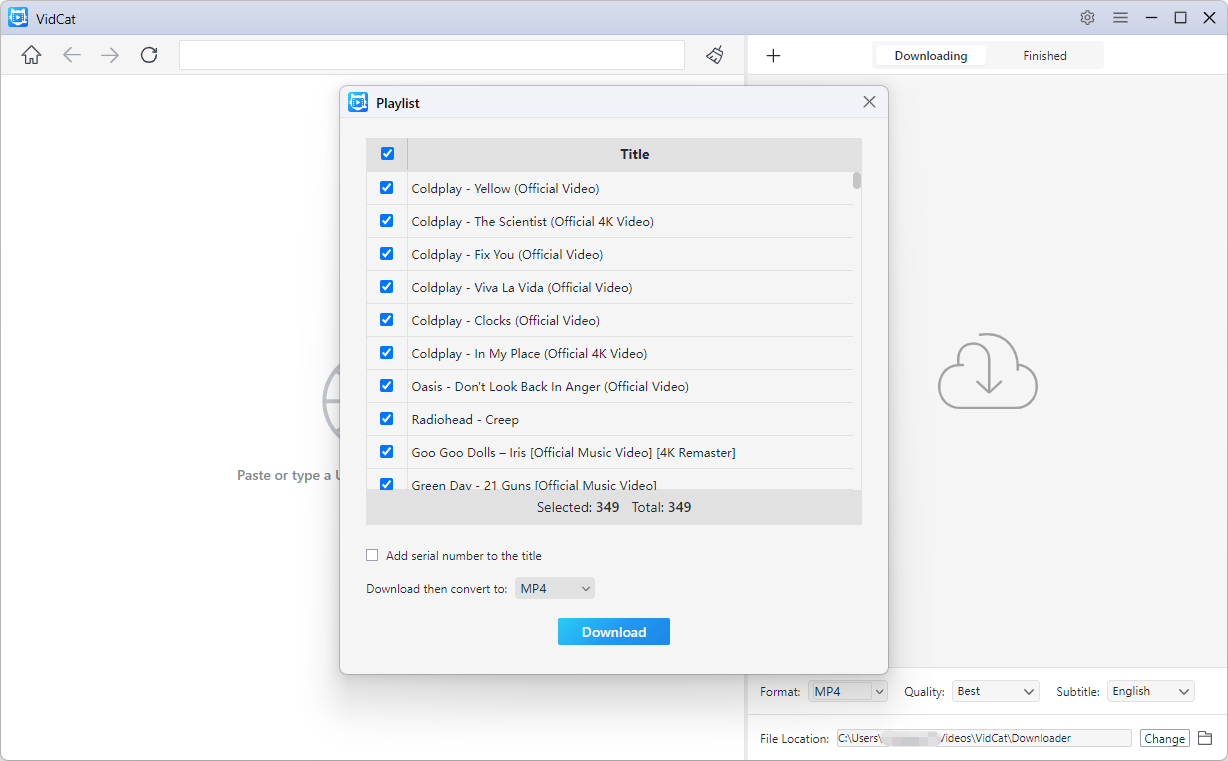
VidCat will add the selected items to the download queue automatically.
4. Download Within the Built-in Browser
VidCat includes a built-in browser that allows you to browse supported websites and download content directly.
How to Use the Built-in Browser:
- Visit a supported website within VidCat (Log in if necessary).
- Navigate to the video, audio, or playlist you want to save.
- Play the content, then VidCat will automatically detect downloadable media and display a download button.
- Click the download button to start the process.
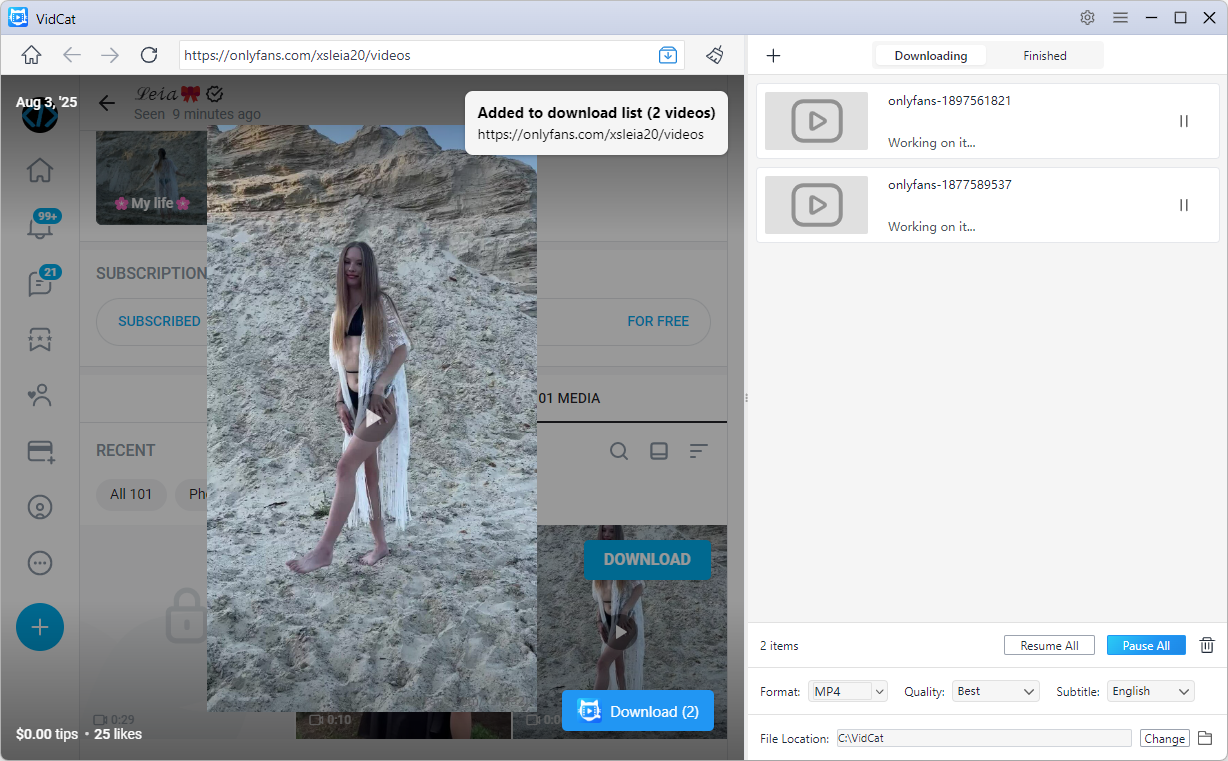
This method is especially useful for websites that require user authentication.
5. Find Downloaded Videos
After downloads are completed, you can quickly locate your saved files.
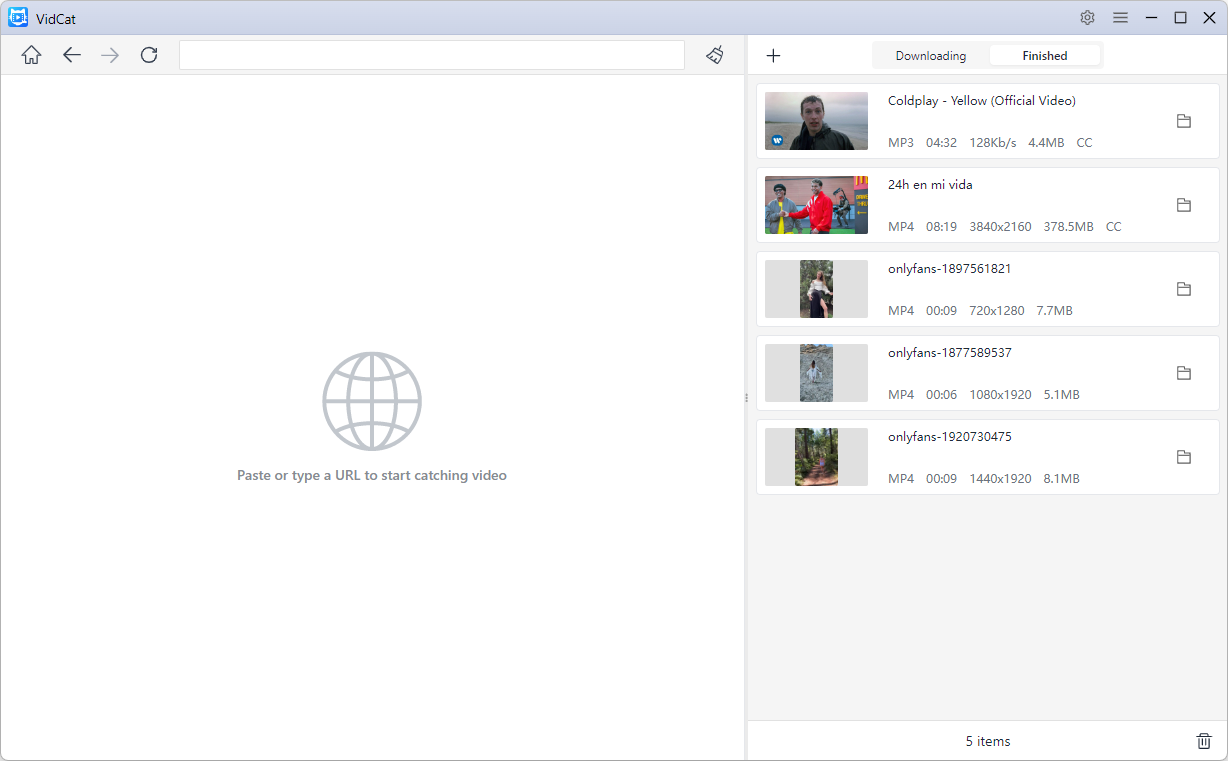
- Open the Finished tab to find the completed download.
- Click Open File to view the media file.
- Click Open Folder to access the download directory.
6. Update VidCat
Keeping VidCat updated ensures compatibility with supported websites and access to the latest features.
Steps:
- Open VidCat > click the Menu icon > Select Check for Updates.
- If a new version is available, follow the on-screen instructions to install it.