How to Extract Image URLs Easily: A Complete Guide

Images are one of the most valuable resources on the web, whether you’re collecting inspiration, conducting research, building datasets, or downloading media for personal use. However, before you can save or analyze an image, you often need its direct URL. An image URL is the web address that points directly to an image file, making it easy to download, share, or process with other tools.
Fortunately, extracting image URLs isn’t difficult. Modern browsers include built-in developer tools, while browser extensions and online services can automate the process. If you need to extract hundreds or even thousands of image URLs across multiple websites, specialized software can save a tremendous amount of time.
In this guide, we’ll explore several effective methods for extracting image URLs, from simple manual techniques to advanced bulk extraction solutions.
1. Extract Image URLs Using Browser’s Inspect Tool
Every modern browser includes Developer Tools that allow you to inspect webpage elements and reveal their underlying HTML code. This is one of the most reliable ways to locate an image’s direct URL.
Steps:
- Open the webpage containing the image.
- Right-click the image and choose Inspect (or press F12).
- The browser will open the Developer Tools panel and highlight the corresponding HTML element.
- Locate the
<img>tag and copy the value of thesrcattribute.
For example:
<img src="https://example.com/images/photo.jpg">
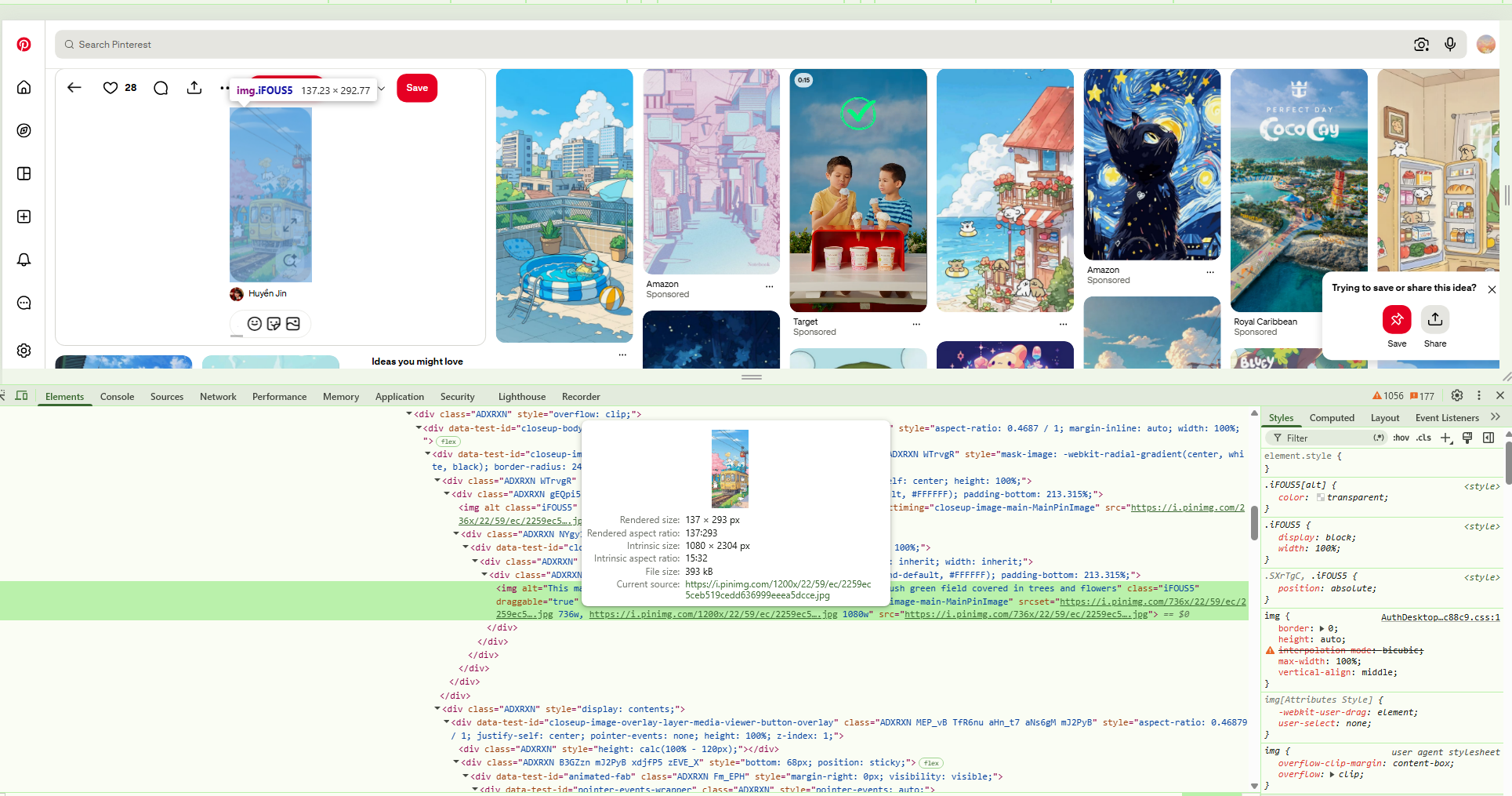
The URL inside the src attribute is the direct image URL.
Some modern websites also use the srcset attribute, which provides multiple image versions for different screen sizes. In these cases, you’ll see several image URLs available to choose from.
2. Right-Click to Copy Image Address
If you’re only interested in one or two images, the easiest method is using your browser’s context menu.
Steps:
- Right-click the desired image.
- Depending on your browser, click Copy Image Address, Copy Image Link, or Open Image in New Tab.
- Paste the copied URL wherever needed.
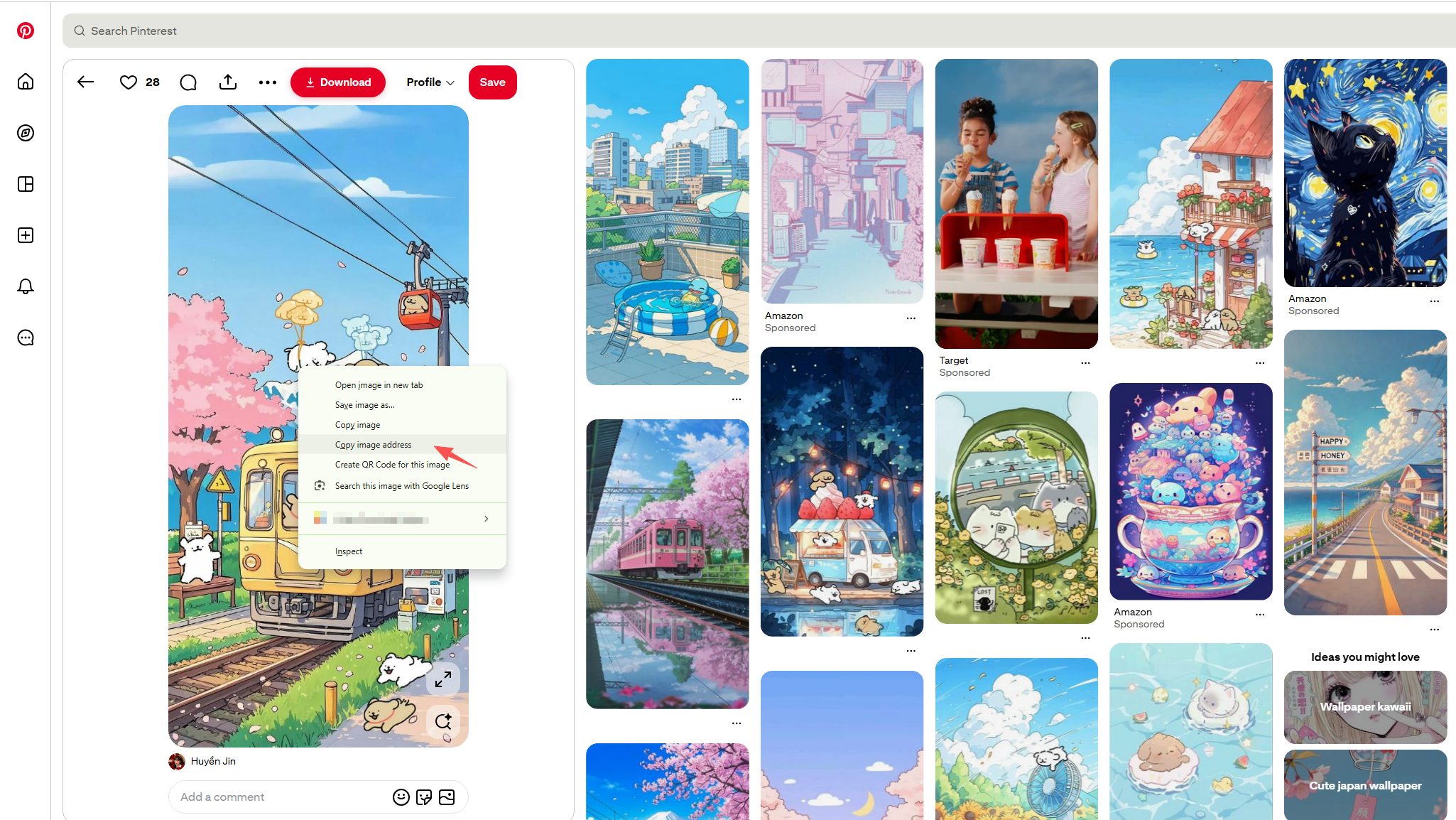
This method is quick and beginner-friendly. However, websites with advanced protection measures may prevent users from copying image URLs through right-click actions or standard browser methods.
3. Extract Image URLs By Viewing Page Source
Another simple method is viewing the webpage’s HTML source code.
Steps
- Visit the webpage, then press Ctrl + U (Windows) or Cmd + Option + U (Mac).
- Search using Ctrl + F.
- Search for:
<img.jpg.png.webp.gif.svg
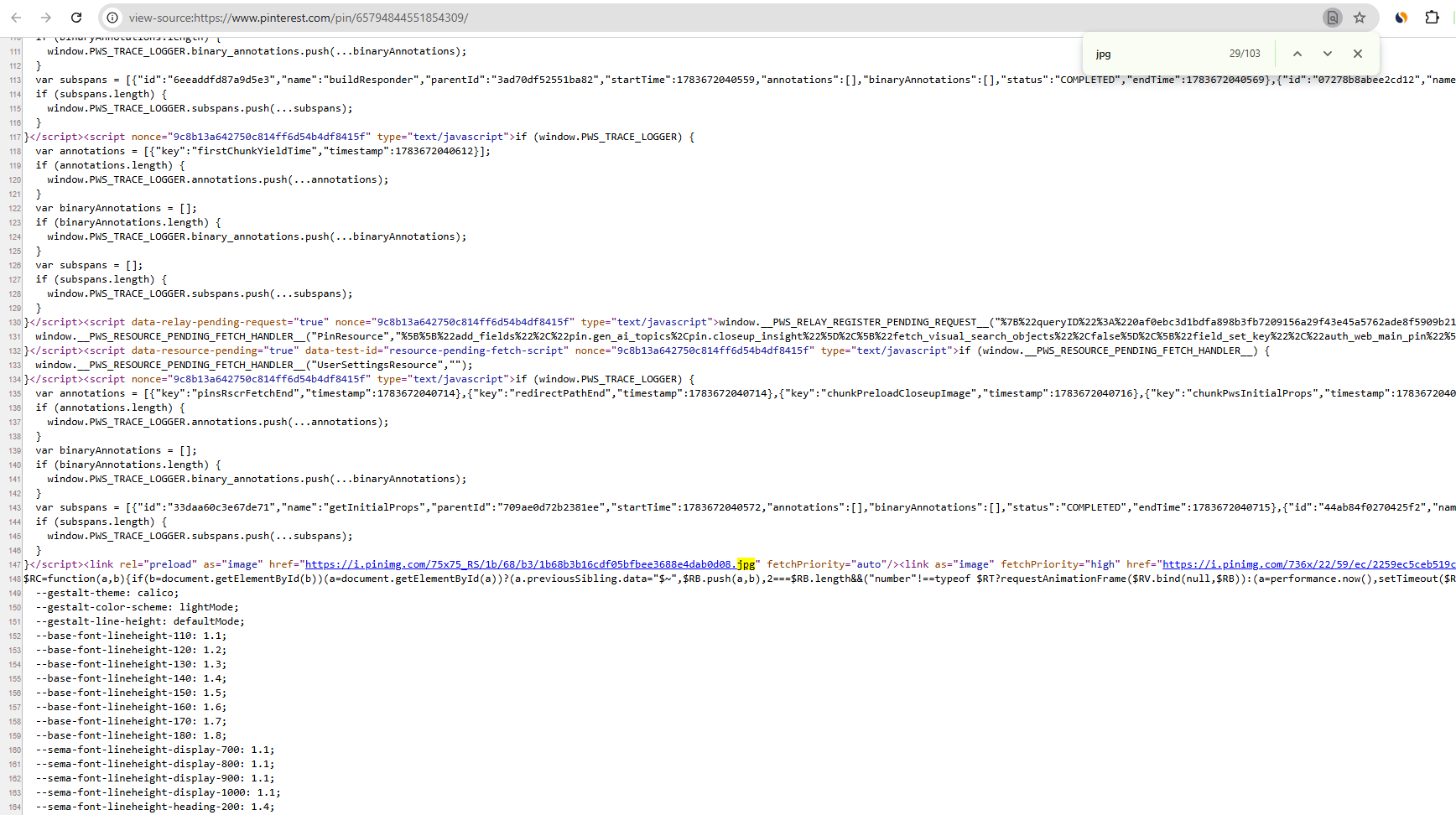
You’ll find many image URLs embedded within the HTML source.
This method works well for static websites but may miss images loaded dynamically after the page finishes loading.
4. Extract Image URLs Using JavaScript in the Browser Console
If you’d like to collect all visible image URLs from a page at once, JavaScript provides a convenient solution.
Steps:
- Press F12 to open Developer Tools.
- Switch to the Console tab.
- Run the following JavaScript:
[...document.images].map(img => img.src)The browser will output an array containing every image URL found on the page.
To copy all URLs directly to your clipboard, use:
copy([...document.images].map(img => img.src).join('\n'))This method is particularly useful for developers, researchers, and users who frequently work with webpage content.
5. Extract Image URLs Using Browser Extensions
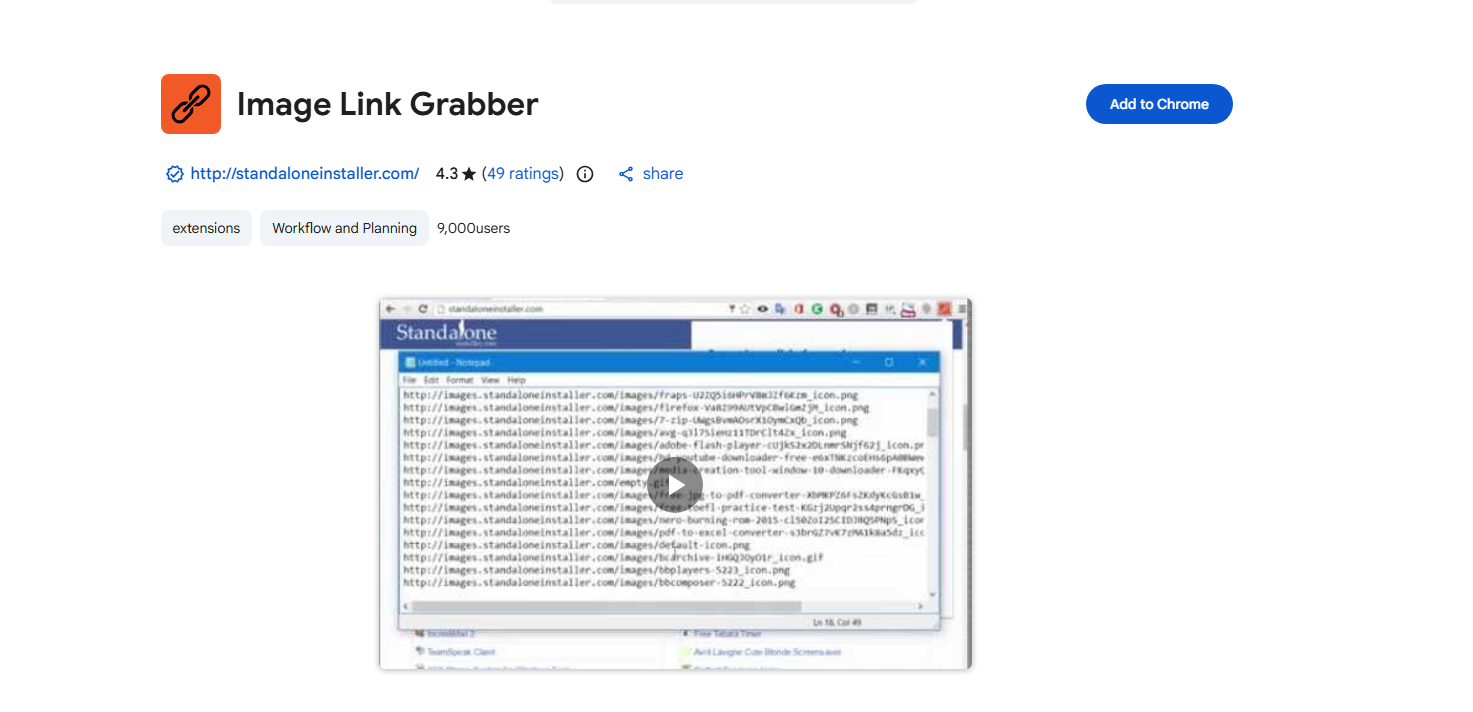
Browser extensions make image URL extraction much more convenient.
Most image extraction extensions automatically scan the current webpage and display every detected image in an organized gallery. Many also include filters that let you narrow results by file type, image size, or resolution.
Typical features include:
- Automatic image detection
- Image previews
- Copy image URLs
- Batch downloading
- Resolution filtering
- Export image lists
These extensions eliminate the need to inspect HTML or run JavaScript manually, making them ideal for casual users.
6. Extract Image URLs Using an Online Image URL Extractor
If you don’t want to install any software, an online image URL extractor can be a convenient alternative.
Most online tools work in a similar way:
- Visit the image URL extractor website.
- Enter the webpage URL and lick Fetch, Extract or Scan.
- Wait while the tool analyzes the webpage.
- View or copy the extracted image URLs.
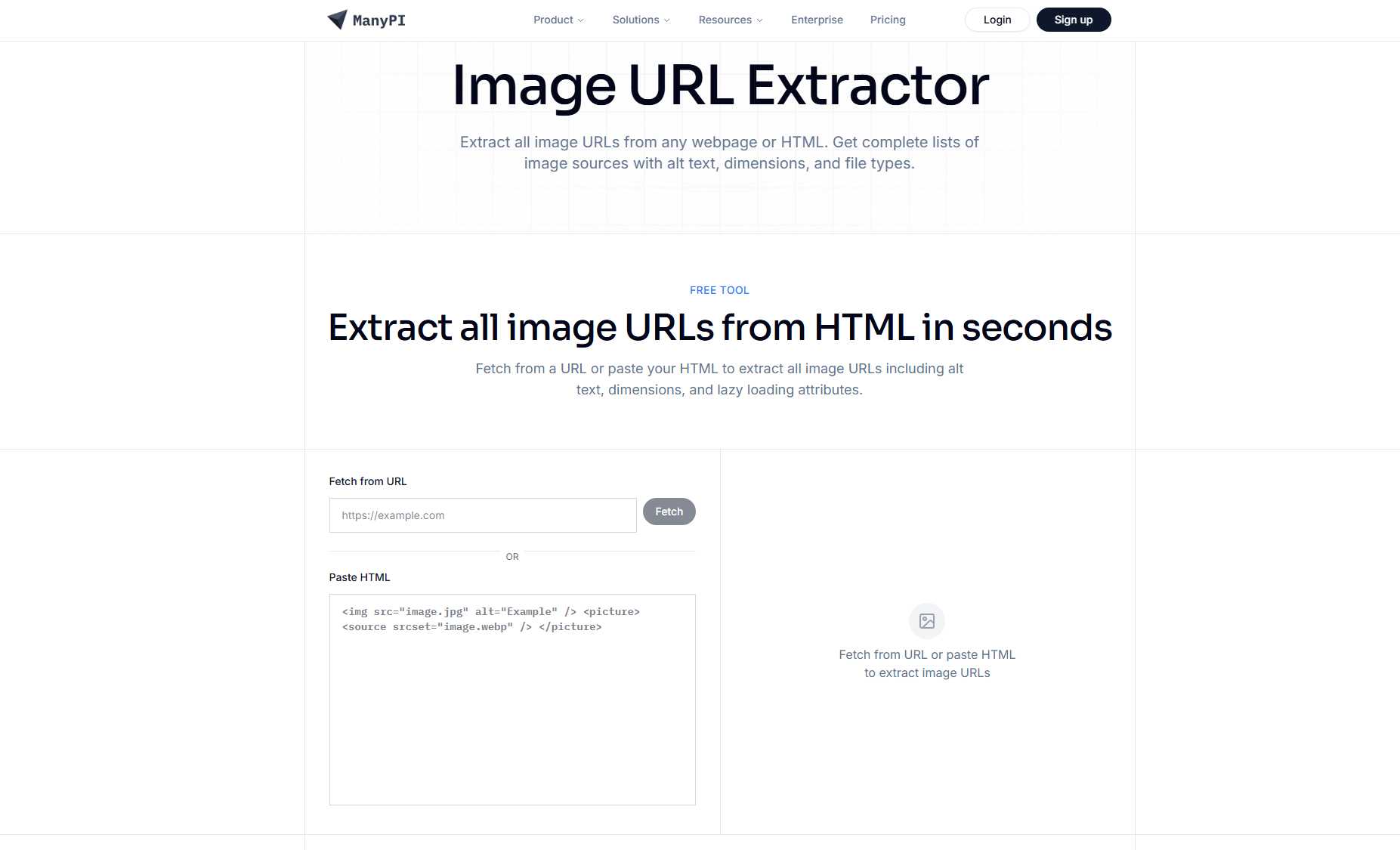
Online extractors are easy to use and work well for occasional tasks. Since everything runs in the browser, there’s no installation required.
7. Advanced Bulk Extract Image URLs with PicCat
If you regularly collect images from websites, manually copying URLs quickly becomes inefficient. A dedicated desktop application like PicCat offers a much faster and more powerful solution.
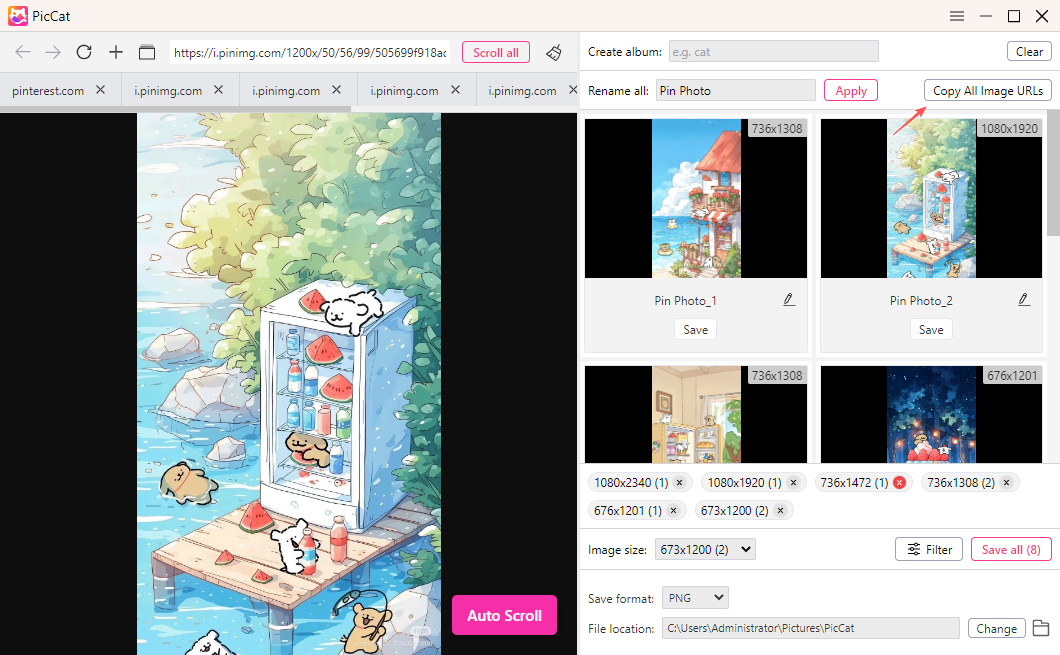
PicCat is designed specifically for discovering, managing, and exporting images from webpages. Instead of manually extracting images one by one, it scans entire webpages and presents all detected images in an easy-to-browse visual interface.
Key features include:
- Detect image URLs from virtually any webpage.
- Batch extract images from multiple browser tabs or webpages.
- Preview images before downloading.
- Filter images by dimensions, format, or file type.
- Export all detected image URLs with a single click.
- Batch rename images before downloading.
- Bulk download selected images.
- Built-in browser for scanning websites directly within the application.
Using PicCat is simple:
- Install and launch PicCat on your Windows or Mac computer.
- Open the built-in browser and visit the webpage you want to scan.
- Allow PicCat to analyze the page automatically, then filter results by size or file type if needed.
- Click “Copy All Image URLs” or download selected images in bulk.
8. Conclusion
Extracting image URLs doesn’t have to be complicated. For occasional needs, simple methods like right-clicking an image, inspecting webpage elements, viewing the page source, or running a small JavaScript snippet are often sufficient. Browser extensions and web-based image URL extractors simplify the process, making them ideal choices for users with basic image extraction needs.
However, if you frequently need to collect image URLs from multiple pages or large websites, a dedicated desktop solution is the most efficient option. PicCat combines automatic webpage scanning, image previews, advanced filtering, batch URL exporting, and bulk downloading into a single streamlined workflow. Whether you’re a designer, researcher, marketer, or content creator, PicCat can dramatically simplify image URL extraction while saving valuable time.